Error message:
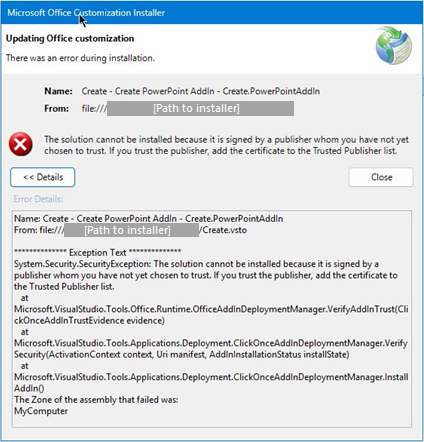
First check whether a zone identifier flag has been added to the Create.vsto file and remove it if necessary as described here.
Then add the Presentation Solutions Authenticode code signing certificate to the trusted publisher store for this machine using the instructions below.
Our certificate can be downloaded here.
Steps to add the Presentation Solutions certificate to the Trusted Publishers store on a PC
1. Uninstall Create.
2. Extract the certificate file from the zip and double click to start the Certificate Import Wizard.
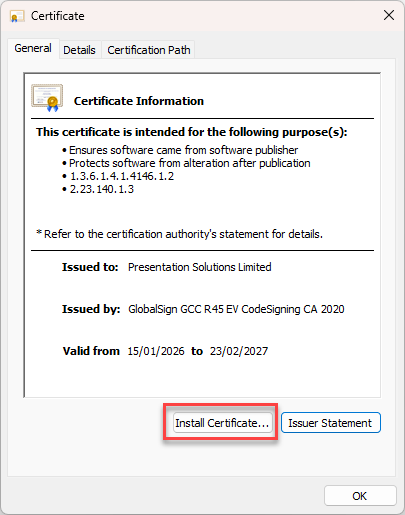
3. Press the Install Certificate button.
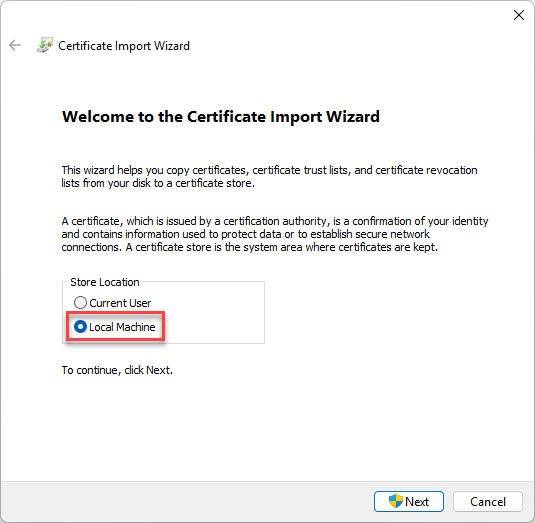
4. Select the Local Machine option and click Next
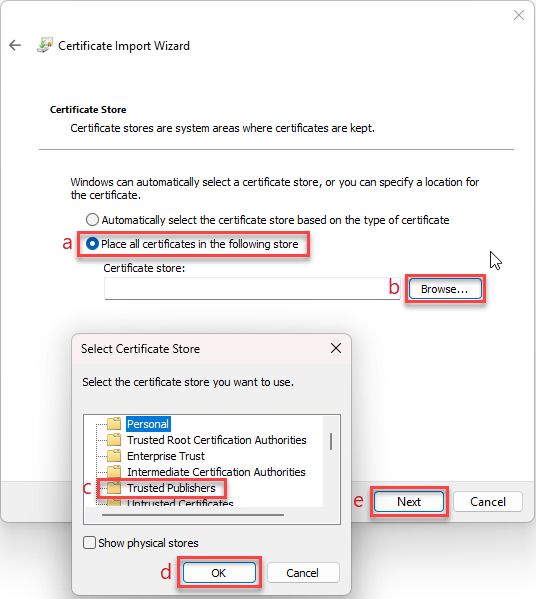
5. When you see the window below (a) select Place all certificates in the following store, (b) click Browse…, (c) select Trusted Publishers and (d) click OK. (e) Click Next and then Finish.
6. After completing these steps these steps the Authenticode certificate (“Presentation Solutions Limited”) should be added to “Trusted Publishers”.
7. You will need to run certmgr.msc in order to check if the certificate was added correctly to “Trusted Publishers”.
8. Once the certificate has been imported successfully try installing Create again.
RELATED ARTICLES
Deployment and application do not have matching security zones
Was this article helpful?
That’s Great!
Thank you for your feedback
Sorry! We couldn't be helpful
Thank you for your feedback
Feedback sent
We appreciate your effort and will try to fix the article