Signing into the Cloud for the first time
Create users who have been given access to Create V10 for the first time, will usually be prompted to sign in using the Active Directory sign-in page. If you are signed into Office, you may be signed in to Create automatically without seeing the prompt because your credentials are already stored in Office.
When accessing Create V10 for the first time in several days, users may be prompted to sign in using the Active Directory sign-in page.
Once users successfully enter their normal Azure AD login credentials, Create will synchronise any changes made by Presentation Solutions or nominated Authors to content within Create for PowerPoint, Word and Excel.
Signing into the Cloud step-by-step
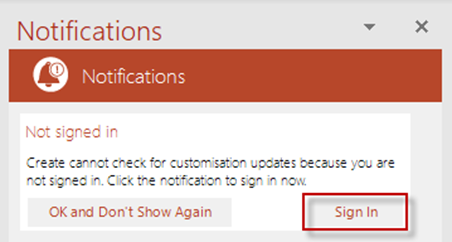
- If a user is not signed into the Cloud, then the following notification will be displayed in the Notifications pane each time they load Office.
- To sign in, click Sign In.
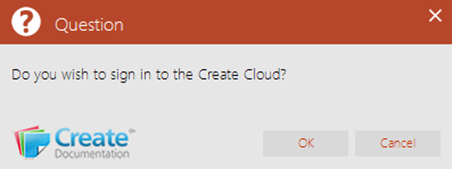
- The following dialog will appear, click OK.
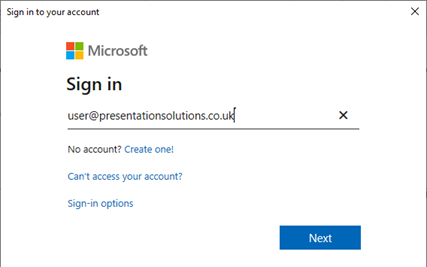
- The Microsoft sign in dialog will appear, Enter your usual login for Azure AD and click Next.
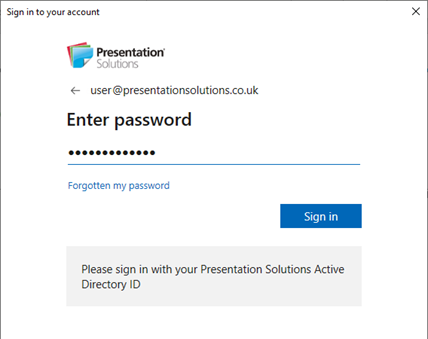
- Then enter your password and click Sign in. Depending on your organisation’s set up you may be required to complete multi factor authentication.
Prompting the dialog to sign in or out of the Cloud
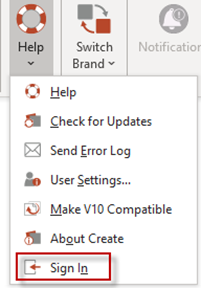
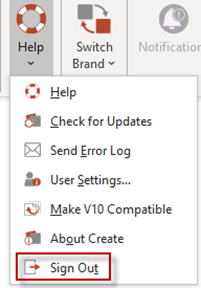
There is an option at the bottom of the Help menu on the Create tab which will display Sign In or Sign Out depending on whether the user is currently signed into the Cloud.
If you are not currently signed in, you can click Sign In and follow the steps on the Microsoft sign dialog to sign in.
If you are currently signed in, you can click Sign Out to sign out of the Cloud. We do not recommend that you do this except on the advice of Presentation Solutions support.
Need admin approval message
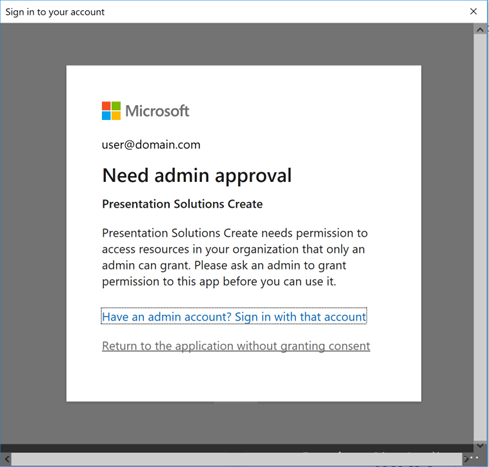
If the user sees a message that they Need admin approval when they attempt to sign in then this implies that your organisation has not granted admin consent for the Create Cloud, please see Article - Create Onboarding for instructions on enabling the Create Cloud at your organisation.
If your organisation has chosen not to use the Create Cloud, then you should click Return to the application without granting consent and then following the instructions for Dismissing the Cloud notification for non-Cloud users above.
Was this article helpful?
That’s Great!
Thank you for your feedback
Sorry! We couldn't be helpful
Thank you for your feedback
Feedback sent
We appreciate your effort and will try to fix the article