Daily automatic download of cloud updates
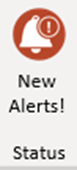
Create will automatically sync with the cloud the first time an Office application is opened in the morning. If changes to the customisation are found then Create will sync in the background whilst the user continues to work. The status button at the right-hand end of the Create tab will display New Alerts! when the sync is complete. New Alerts! may take some minutes to display depending on the size of the changes made and the user’s internet download speed.
Manually download cloud updates via Check for Updates
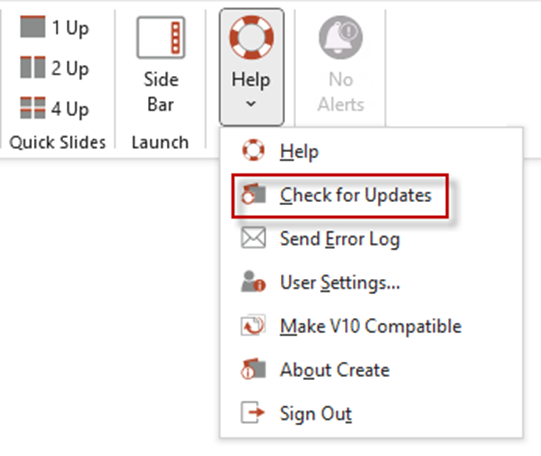
If a user wishes to force the cloud sync to occur immediately then they can select Check for Updates from the Help menu at the right-hand end of the Create tab. Note: if the user has an MSI installation of Create then the option will be called Check for Brand Updates as an MSI installation can only be updated by their IT team.
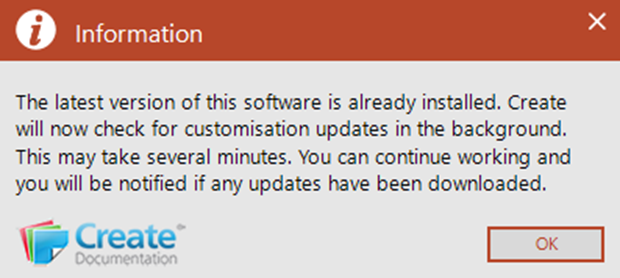
The user will see the message below that informs them that the latest software version is installed but Create will sync with the cloud in the background and download any the templates.
The status button at the right-hand end of the Create tab will display New Alerts! when the sync is complete.
How to check that cloud updates are complete
Click the New Alerts! button to open the notification pane – you should see a message that confirms that your brand files have been successfully downloaded and updated
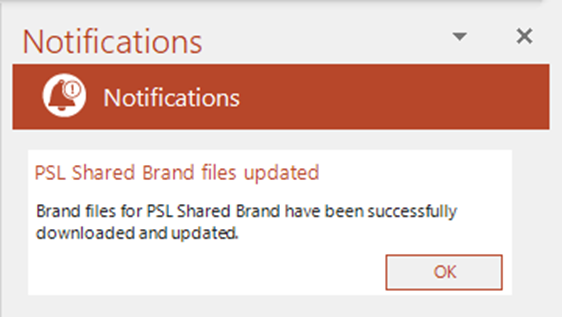
Note it may be necessary to close and reopen Office once you have received the confirmation notification to see all of the new content.
Signing in to the Create cloud
In order to receive cloud updates, users must be signed in to Create.
If a user isn’t already signed into Create then they will see the Microsoft sign in dialog when they launch Office or they can select Sign In from the Help menu at the right-hand end of the Create tab. Note If the bottom option displays Sign Out then the user has already successfully signed in to the cloud.
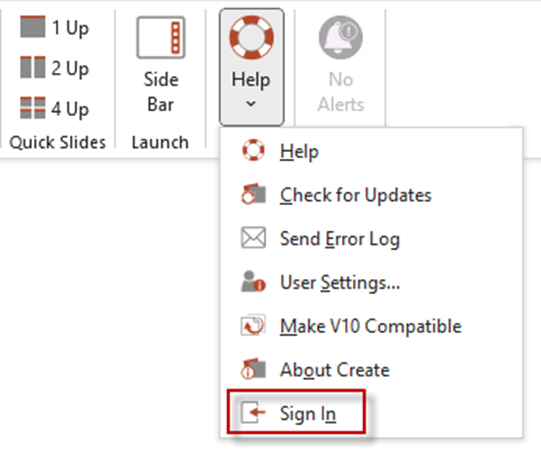
Once a user is signed into Create they will be able sync the latest cloud updates which may include changes to templates, office addresses and other assets which have been made to the customisation by Presentation Solutions or a client author.
Was this article helpful?
That’s Great!
Thank you for your feedback
Sorry! We couldn't be helpful
Thank you for your feedback
Feedback sent
We appreciate your effort and will try to fix the article