1. Confirm that a licence record has been authorised and set up for you by the Portal Administrator to use Create and that you know the details which were used to setup the user record, i.e. the correct email address.
2. Once Create is installed, open PowerPoint. There will be a new tab on the ribbon called “Create” but most of the buttons will be disabled. To activate Create, go to the Create Group and choose Help/Authenticate.

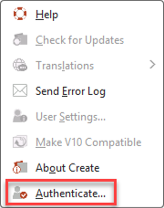
3. The following dialogue box will appear – enter your email and press Start button.
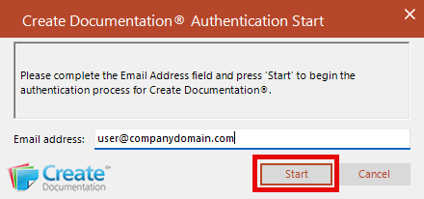
4. After selecting Start, a sign in dialog to the Presentation Solutions Customer Management System (“CMS”) will appear. Enter your email address and press Next.
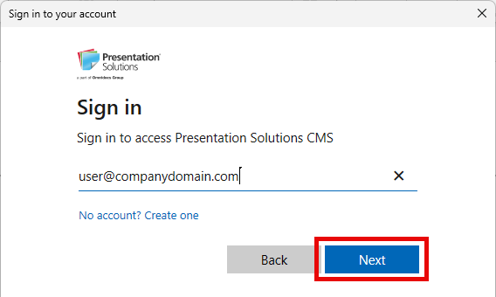
5. The dialog will then ask you to Enter password. As this is the first time that you are trying to register a Presentation Solutions product via our CMS you should select Forgot password? Note: if you have previously authenticated a different Presentation Solutions CMS product (such as our client portal), then you can use your existing password and skip to item 10 in these instructions.
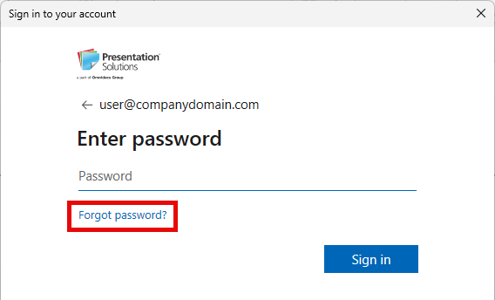
6. The following dialog will display, press Email code to [your email address] and an account verification code will be sent to you.
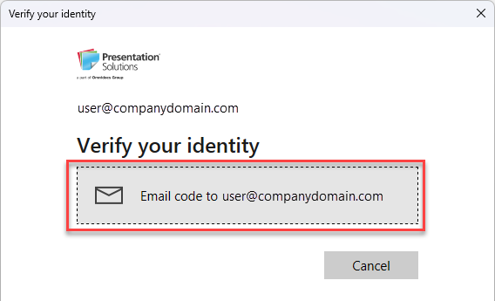
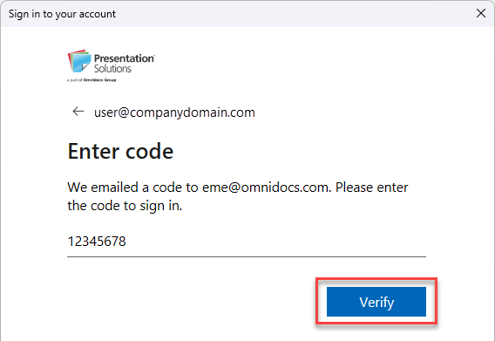
7. Enter the code from the email into the dialog box and click Verify.
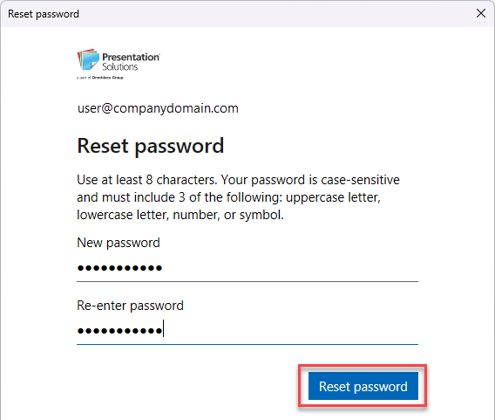
8. The following dialog will appear, enter your chosen password into the dialog and click Reset password.
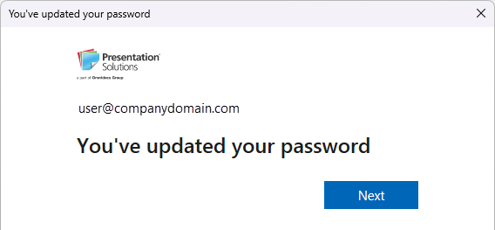
9. The following dialog will appear, click Next.
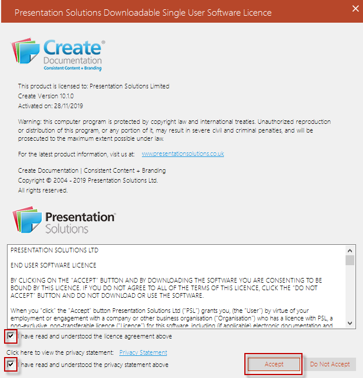
10. The licence agreement will appear. Please read the licence terms before you check the box adjacent to “I have read and understood the licence agreement above” (please note that terms & conditions already been agreed by your Legal team and Presentation Solutions Ltd). Please also read the privacy statement before you check the box adjacent to “I have read and understood the privacy statement above”. Then press the Accept button.
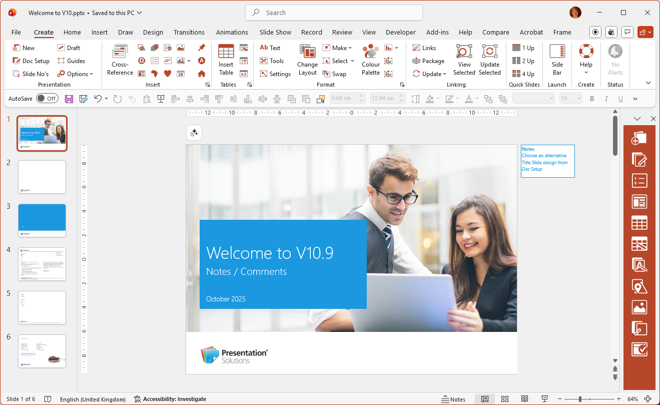
11. Once the previous steps have been completed, progress dialogs will appear showing that Create is setting up your brand(s), the buttons on the Create tab will be activated and you will be presented with your company’s default presentation.
Optional Multi-Factor Authentication (“MFA”) steps:
1. If your organisation has chosen to enable MFA for their users, the following dialog will display after you have successfully entered your password. Press Email code to [your email address] and an account verification code will be sent to you.
2. Enter the code from the email into the dialog box and click Verify. You will then continue from step 10 above and be presented with the licence agreement
Note: if your organisation has chosen to enable MFA, you will be prompted to re-authenticate with a new code once per week.
Was this article helpful?
That’s Great!
Thank you for your feedback
Sorry! We couldn't be helpful
Thank you for your feedback
Feedback sent
We appreciate your effort and will try to fix the article