Introduction
The MSI installs the application files in Program Files.
If you are installing the MSI on a pc that currently has an older version (i.e. 10.8 or earlier) of Create installed, then you must uninstall the old version from Control Panel | Programs and Features first.
The MSI will require administration rights to install.
The pre-requisites Microsoft .NET Framework 4.8 and Microsoft Visual Studio 2010 Tools for Office Runtime (VSTO 4.0) must be installed on the user’s PC before installing Create V10.9 from the MSI.
MSI – installation step-by-step via UI
You will be emailed a link to download the MSI file from our webserver.
1. Install the pre-requisites (.NET 4.8 first and then VSTO 4.0) – see Section 2 System Requirements.
2. Run the MSI Installer and click Next
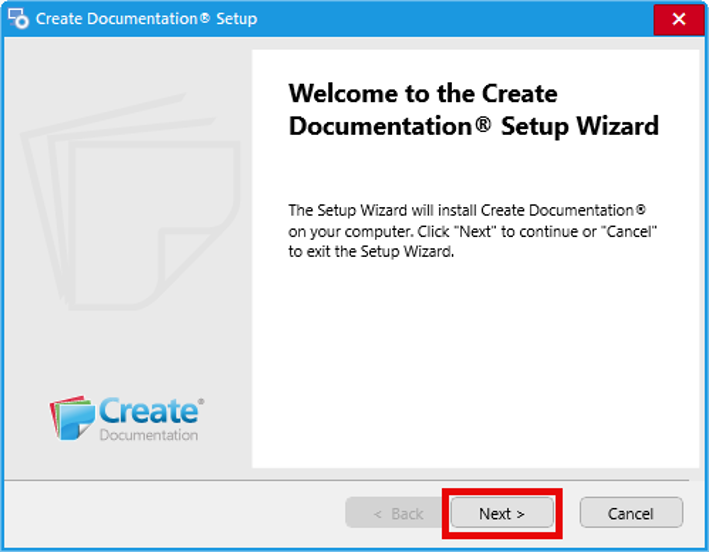
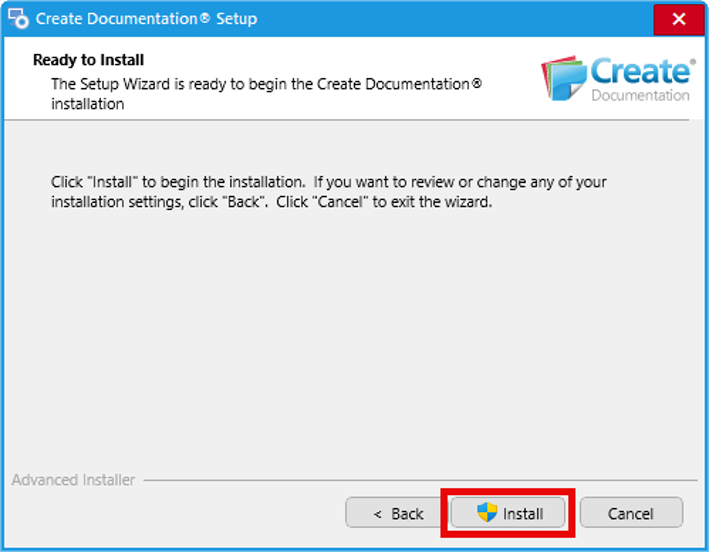
3. Click Install. At this point you will be asked to supply admin credentials if the current login does not have administration rights.
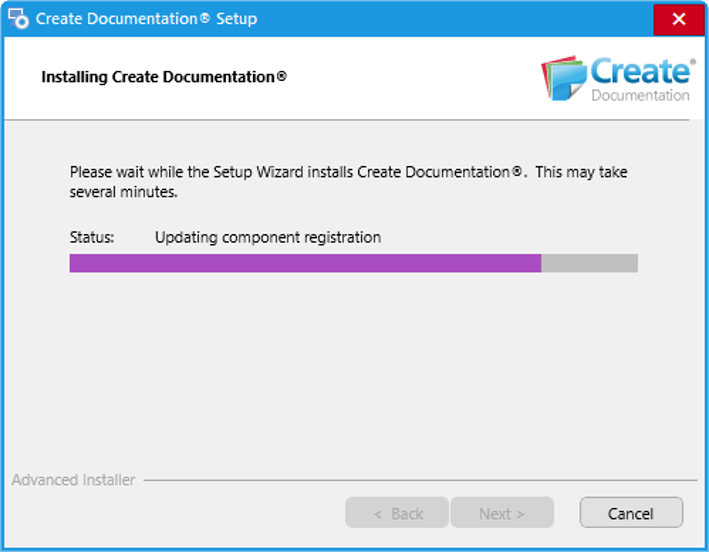
4. A progress bar will appear.
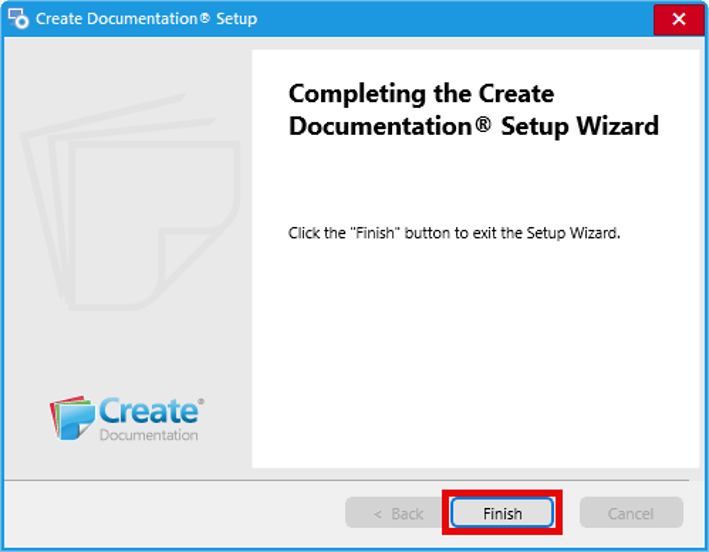
5. When the installation has completed, click Finish.
MSI – installing an update
Typically, when a software update is available, we will send an updated MSI.
When installation is run this will overwrite the existing software with the updated software. Ensure all instances of Word, PowerPoint and Excel are closed and re-opened after the update is installed.
The MSI is also capable of performing an automatic software update if desired. If agreed with your business a flag on your customer record on the client portal can be checked as true. Create will detect this flag and then automatically check for software updates. If a software update is available Create will offer the user a dialog to perform the update. Note: updates to templates and brand settings are independent of software updates and are not impacted by this setting.
MSI – switches
The MSI deployment package for Create has three switches, PSLASSETCACHE, PSLOFFLINEASSETREPO and PSLTRANSLATION which can be used when installing via a script.
PSLASSETCACHE
This switch creates or updates the following registry value:
[HKEY_CURRENT_USER\Software\PresentationSolutions\Create\PSLAssetCache]
Create uses the path in this value to store assets (see Assets retrieval and storage). If this is not specified it will default to the path My Documents\Create.
Example:
msiexec /i "S:\Create Install Folder\Create Documentation®.msi" /qn PSLASSETCACHE="C:\CreateAssets\Cache"
PSLOFFLINEASSETREPO
This switch creates or updates the following registry value:
[HKEY_CURRENT_USER\Software\PresentationSolutions\Create\PSLOfflineAssetRepo]
If a customer chooses the offline storage method, Create uses the path in this value to retrieve assets (see Assets retrieval and storage). If this is not specified Create will download assets from the cloud.
Example:
msiexec /i "S:\Create Install Folder\Create Documentation®.msi" /qn PSLOFFLINEASSETREPO="S:\Shared Assets Location"
PSLTRANSLATION
This switch creates or updates the following registry value:
[HKEY_CURRENT_USER\Software\PresentationSolutions\Create\Translation]
If a customer chooses to translate the user interface on installation, Create uses this value to apply the language selected.
Example:
msiexec /i "S:\Create Install Folder\Create Documentation®.msi" /qn PSLTRANSLATION="es-ES"
Was this article helpful?
That’s Great!
Thank you for your feedback
Sorry! We couldn't be helpful
Thank you for your feedback
Feedback sent
We appreciate your effort and will try to fix the article