Setting up a user licence
Manual licensing requires a personalised licence record to be set up on the licensing database in advance of each user registering Create. The purpose of manual licensing is to stop unauthorised users being able to register Create.
Each client site will need to appoint an administrator, who will be able to control the licensed user database. The portal administrator will be required to create a licence record for all authorised users; before the registration stage can take place. The following details are required for each user: first name, surname and email address.
Validation
Create software needs to validate via the internet but users do not need to launch a browser to access the internet as this happens silently. If you add our domain to your internet trusted locations, then users will be able to continue using Create (see below).
At registration
This process requires access to our web API at initial registration – where a user’s login credentials have been approved for Create – the registration checks and validates the license on first use and each time a user launches Create after that.
If our web API cannot be reached, Create will typically continue to work for another 7 days.
If our web API still cannot be reached, users will be unable to use Create until they have successfully connected to the web API. The Create tab is still shown but functions do not work.
License key location
The registration process accesses the Presentation Solutions web API and grants a license to a user, sending back the license key which is stored in the registry in HKEY_CURRENT_USER\Software\Presentation Solutions.
Web APIs URL
Create connects to our web API to at the following URL:
https://afde-global-01-dwcuemgmhzapg2f5.a02.azurefd.net/assets-api
A request is made to this API using an MSAL authentication token. This data is compared to licence data held in the licensing database to confirm if the user is legitimately allowed to use Create and the assets for a specific organisation. This token is stored in the user’s roaming cache. Licence information is stored in the registry and is validated each time Create is launched.
The web API and the licensing database are hosted in Windows Azure in Microsoft’s “West Europe” region, located in the Netherlands. Data is not distributed across regions so will not be sent outside of Europe, to the best of our knowledge. Microsoft has a long-standing commitment to privacy. More information about The Azure Privacy Statement describes the specific privacy policy and practices that govern customers' use of Azure can be found on this link.
http://azure.microsoft.com/en-gb/support/trust-center/privacy/
Assets retrieval and storage
Create retrieves assets in a lazy loading fashion. So as a user accesses features in Create the appropriate assets are retrieved and place in a local asset cache on their machine. IT can specify the asset cached path value in a local registry key on the user’s machine. [HKEY_CURRENT_USER\Software\PresentationSolutions\Create\ PSLAssetCache]. If this is not specified it will typically default to the path My Documents\Create.
Assets are retrieved 2 ways.
1. Online
This is the default method of storage. Assets stored securely in PSL Azure blob storage. These are then retrieved by Create in a lazy loading fashion using SSL depending on what features a user accesses. If a user is designated as a company author they will have the ability to upload assets to azure also using SSL
2. Offline
Assets are provided in a zip file to the customer. The zip file is placed in an assets repo folder specified by IT or management within the corporate domain. These are then retrieved by Create in a lazy loading fashion depending on what features a user accesses. Company author roles are not available for this type of asset storage. For this retrieval method, IT or management must specify the asset repo path value in a local registry key on the user’s machine:
[HKEY_CURRENT_USER\Software\PresentationSolutions\Create\PSLOfflineAssetRepo].
Error logging and reporting
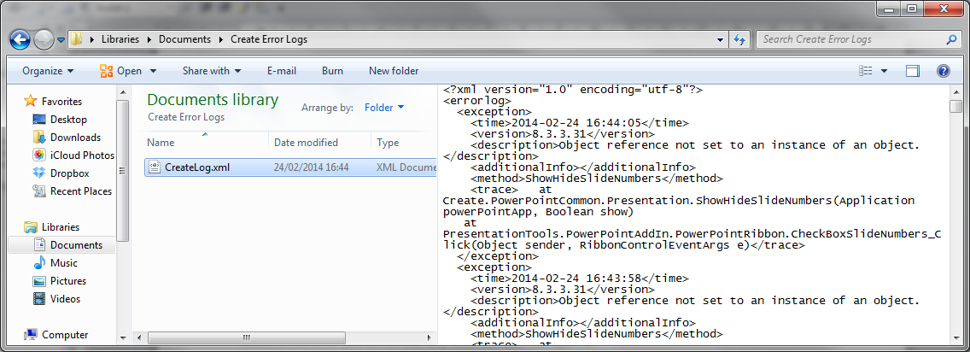
Within Create there is an error log upload facility which users can nominate to send to us if they are experiencing problems using Create. The information captured in the log gives us an insight into the cause of the error (please note we do not see any confidential data or screenshots or details from other applications running).
This uses a web service at this URL: https://webservices.presentationsolutions.co.uk/licensing/ErrorService2.svc
Typical content of the Create error log:
Was this article helpful?
That’s Great!
Thank you for your feedback
Sorry! We couldn't be helpful
Thank you for your feedback
Feedback sent
We appreciate your effort and will try to fix the article