The Format group contains a selection of worksheet formatting options. See Article: Excel - IfError function for details on the IfError function.
Multiplying Values
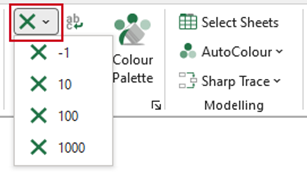
The Multiply function multiplies a range of Excel data by -1, 10, 100 or 1,000. If the data is the result of a formula, the formula will be multiplied by the selected value and will therefore remain.
- Select the range of data to be multiplied.
- Select -1, 10, 100 or 1,000 from the dropdown.
Dividing Values
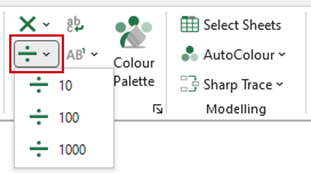
The Divide function divides a range of Excel data by 10, 100 or 1,000. If the data is the result of a formula, the formula will be divided by the selected value and will therefore remain.
- Select the range of data to be divided.
- Select 10, 100 or 1,000 from the dropdown.
Notes |
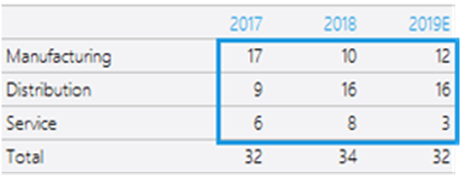
Before using the Multiply by -1 function
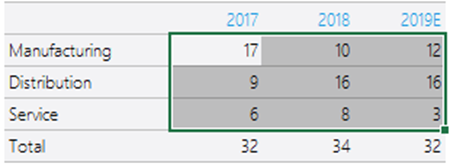
After using the Multiply by -1 function
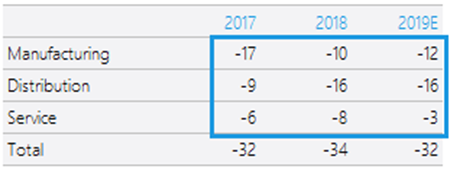
After using the Multiply by -1 function for the second time
Wrapping text
The Wrap Text function wraps text in a cell or a selection of cells on the worksheet. Selecting this function again will turn off text wrapping in the selection.
- Select the cell or cells you want to format and select Wrap Text.
Data in the cell wraps to fit the column width and the row height will become automatic. When you change the column width, data wrapping adjusts automatically.
Footnotes
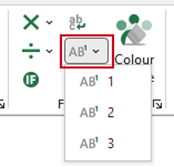
The Footnote function adds a superscript note number to text or data on a worksheet. If the corresponding text appears in a chart, the superscript number will also appear in the chart labels.
- Select the cell to which the footnote is to be added.
- Select Footnote and the relevant number (1, 2 or 3).
| Notes Be careful not to add the footnote to any cells that are creating data, as they will become text rather than data values. If you require a footnote of 4 and above, create as normal by typing and selecting the number and formatting the font to superscript. |
Custom Number Formats
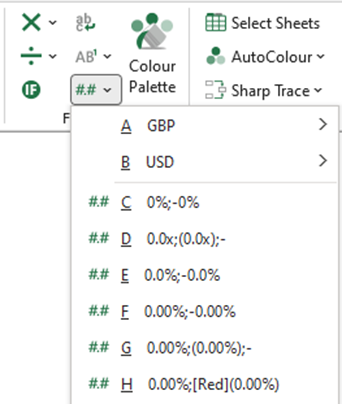
The Number function applies number formats to the selected cell or cells enabling greater consistency within your organisation’s spreadsheets. These number formats can be customised according to your organisation and uploaded by Presentation Solutions. They can also be categorised in the dropdown menu by e.g. currency or country.
- Select the cell/s to which the custom number format is to be applied.
- Select Number and then select the relevant number format from the dropdown.
Was this article helpful?
That’s Great!
Thank you for your feedback
Sorry! We couldn't be helpful
Thank you for your feedback
Feedback sent
We appreciate your effort and will try to fix the article