This function is useful if a table has been typed and formatted in PowerPoint (not linked to Excel), and partially new data becomes available for a column or cells – in a new Excel source. This will save you typing in manually, as without Paste Subset it is not possible to copy just the content from Excel, retaining the PowerPoint formatting.
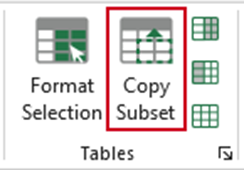
In Excel, select the new range of data and choose Copy Subset.
ALT+Tab (or navigate) back to PowerPoint, place your cursor where you want the paste to start and choose Paste Subset.

RELATED ARTICLES
Was this article helpful?
That’s Great!
Thank you for your feedback
Sorry! We couldn't be helpful
Thank you for your feedback
Feedback sent
We appreciate your effort and will try to fix the article