The Format group contains a selection of worksheet formatting options. See Article: Excel - Formatting Tools for details on the other formatting options.
IfError
Use the IFError function in Create to trap and handle errors in a formula without having to use complicated nested IF statements. You can specify the cell(s) content that will be returned if a formula errors.
Select the cell or cells containing your formula.
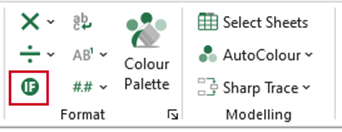
- Select IfError on the ribbon.
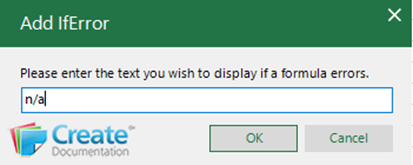
- The default value in the text box will be "NA". Replace the text if required.
- Click OK.
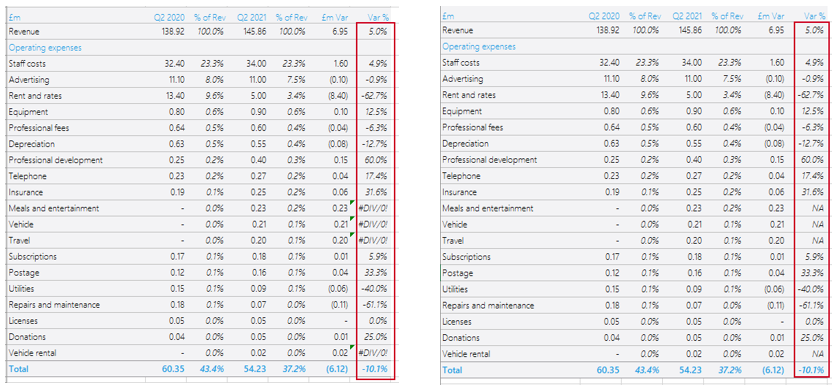
Once the user presses OK, Create will wrap the contents of each cell in the IFERROR function. e.g. the image on the left is before and the image on the right after IFERROR is applied.
| Notes To remove the IF Error function from a cell or cells, select the function again and select OK. If a user selects a combination of cells, the cells with no IFERROR will have it applied and the cells with the IFERROR formula have it removed. If the value in the text box is deleted, the message will be treated as an empty string ("") which means if an error occurs in the formula, the cell will be empty. If a cell contains no formula or contains more than one IFERROR formula, that cell is ignored. The IFERROR function catches the following errors: #DIV/0!, #N/A, #VALUE!, #REF!, #NUM!, #NAME? and #NULL!. |
Was this article helpful?
That’s Great!
Thank you for your feedback
Sorry! We couldn't be helpful
Thank you for your feedback
Feedback sent
We appreciate your effort and will try to fix the article