Use the Create table tools to insert and format tables in your organisation’s branding, rather than native Word to ensure you are using the correct formatting.
Inserting Tables
Place your cursor inside a placeholder. See Article: Inserting Figures.
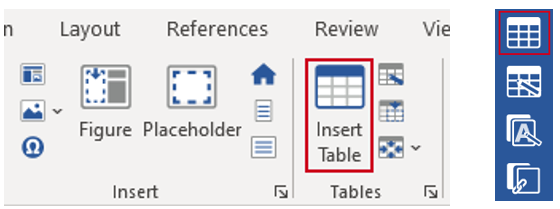
Select Insert Table on the ribbon or the Insert table icon on the side bar to insert a new table.
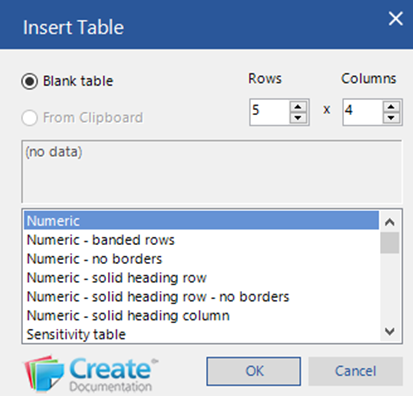
Choose the number of rows and columns you need for your table and then select a table format from the list.
Click OK.
The table will be inserted in the placeholder.
Inserting Table Data from the Clipboard
You can create a table in Word with Excel data from the clipboard. Create will create a link to the source data in Excel, so that if it changes, it can be updated from Word.
In Word, place your cursor inside a placeholder.
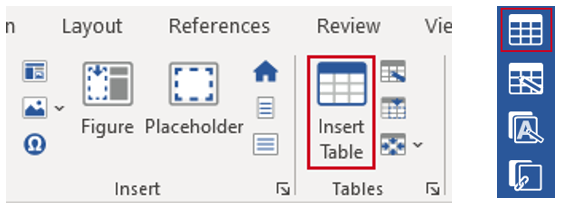
In Excel, select the data range and Copy (CTRL+C) to copy it to your clipboard. In Word, select Table on the ribbon or the Insert table icon on the side bar.
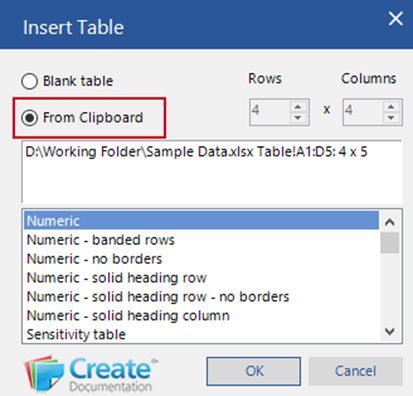
The dialog will highlight From Clipboard and the cell range and worksheet name.
Select a table format, click OK and the table data will be inserted, formatted and linked back to the Excel source.
Was this article helpful?
That’s Great!
Thank you for your feedback
Sorry! We couldn't be helpful
Thank you for your feedback
Feedback sent
We appreciate your effort and will try to fix the article