Troubleshooting Excel column widths
A user has two tables which use the same column widths in two separate workbooks. When the two tables are sent to PowerPoint the tables are different. Users may also experience issues where characters that display correctly on screen when editing a workbook are then displayed as hashes (#) when the range is viewed in print preview or sent to PowerPoint or Word using the Create Table as Picture function.
Excel measures column widths using the number of characters that will fit in the column. Therefore, depending on the width of the font set, the visual width of a column with the same column width value will vary. Excel determines the font to use for this calculation using the font set in the Normal cell style.
In short: one unit of column width equals the width of one character in the Normal style; for proportional fonts, the width of the character "0" is used.
To fix the discrepancy between two workbooks, set the Normal cell style to the same font and font size in both workbooks.
To avoid seeing hash characters when you print or send a table to PowerPoint or Word as a picture, set the Normal cell style to the same font and font size used in your tables.
1. Select Cell Styles from the Home ribbon. Depending on how much room there is on your pc’s display Cell Styles may display as a drop-down menu or a gallery as shown in the screenshots below.


2. Once you have opened the Cell Styles menu, right-click on the Normal option and choose Modify…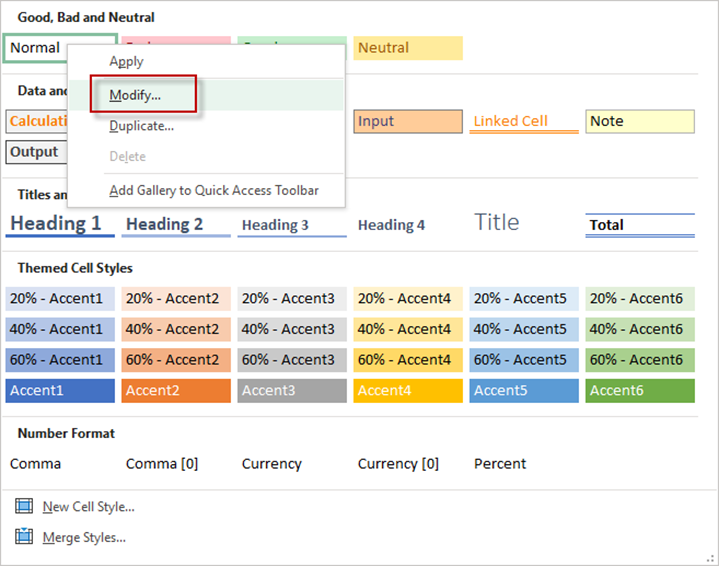
3. In the Style dialog choose Format…
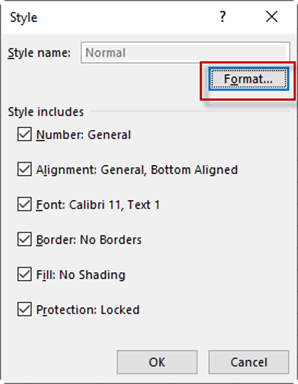
4.
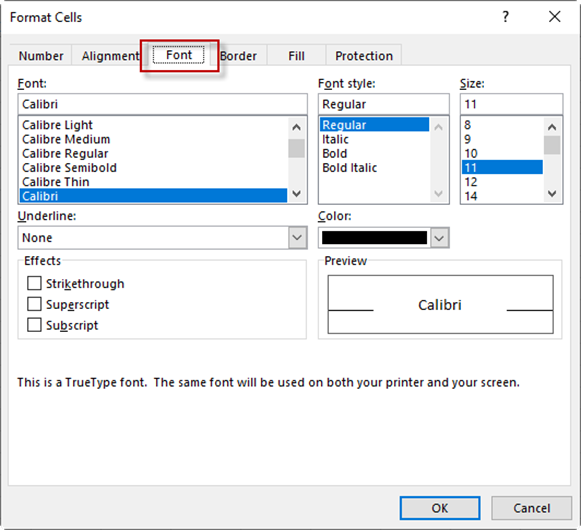
This will open the Format Cells dialog where you
can set your font
Was this article helpful?
That’s Great!
Thank you for your feedback
Sorry! We couldn't be helpful
Thank you for your feedback
Feedback sent
We appreciate your effort and will try to fix the article