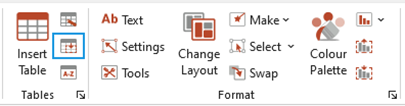
Use the Create table tools to insert and format tables in your organisation’s branding, rather than native PowerPoint to ensure you are using the correct formatting.
Use one of the Table Tools to overwrite some of the current behaviours of selected cell/s.
Compress Column
Reduces the column width of the whole table or selected columns, when space is needed to accommodate more data, or your table no longer fits the available area.
If the table still does not fit the area, then consider reducing the font size of the whole table.
Compress Row
Reduces the top and bottom cell padding of the selected row/s or the whole table if more space is needed to accommodate more data or your table no longer fits the available area.
If the table still does not fit the area, then consider reducing the font size of the whole table.
Negative Numbers
Formats selected numbers, when negative, to your organisation’s preferred default, typically one of these options (29.9) -29.9 (29.9) -29.9.
However, if your table is linked to Excel, always make changes to source worksheet and use the Create Update function.
Sort
Sorts data alphabetically in a table or in multiple tables on a slide, based on a selected column.
Select a placeholder on the slide so that the table is sized and positioned correctly. Select Insert Table on the ribbon or the Insert table icon on the side bar to insert a new table.
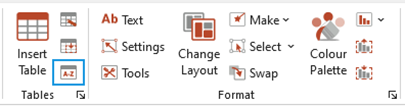
- Select Sort from the Create ribbon or from the Table Tools panel
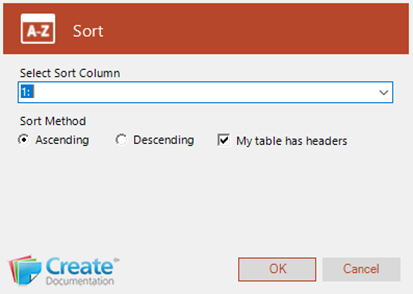
- Select the column on which the sort is to be based.
- Choose Ascending or Descending.
- Uncheck My Table has headers if you want to include the first row within the sort.
- Click OK to sort the table.
Sort Multiple Tables
Sorts multiple tables on a slide (for example, a Glossary of Terms consisting of two separate tables) - use SHIFT + Select to select multiple tables. If the tables are on different slides, copy to one slide, sort and then move the table/s back to their original slide.
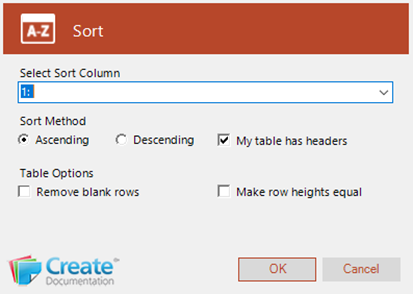
When you select multiple tables, you will see some additional options:
- Check Remove blank rows to remove any blank rows in either table. Create will then evenly distribute the content across the tables.
- Choose Make row heights equal if you want the row heights to be identical regardless of the content.
Paste Subset
This function is handy if a table has been typed and formatted in PowerPoint (not linked to Excel), and partially new data becomes available for a column or cells – in a new Excel source. This will save you typing in manually, as without Paste Subset, it is not possible to copy just the content from Excel, retaining the PowerPoint formatting.
In Excel, select the new range of data and choose Copy Subset.
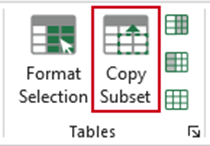
ALT+Tab (or navigate) back to PowerPoint, place your cursor where you want the paste to start and choose Paste Subset.
Was this article helpful?
That’s Great!
Thank you for your feedback
Sorry! We couldn't be helpful
Thank you for your feedback
Feedback sent
We appreciate your effort and will try to fix the article