If a range of table data in the Excel workbook has been named, when exporting the data from Excel to Word or PowerPoint the range's name rather than the cell reference is used in the Links dialogue box in Word or PowerPoint. This makes the updating of tables more efficient because, regardless of the actual range or its location within a workbook, if the data range increases, decreases or moves (within the sheet), it will still be automatically picked up without having to reset the physical range. For more detail on using named ranges see Excel – Named Ranges.
Why does Create ask me if I want to skip the named range check?
If the Excel workbook contains more than 500 named ranges then when you send a named range to PowerPoint or Word as a table you will see the following message:
The Excel file contains 3147 named ranges. This can be a sign of corruption. Copying the selected range may be very slow but can be made faster by skipping checks for named ranges. This means that if the selected range is a named range, the actual range '$B$7:$H$25' will be used for linking instead of the name. Do you want to skip the named range check?
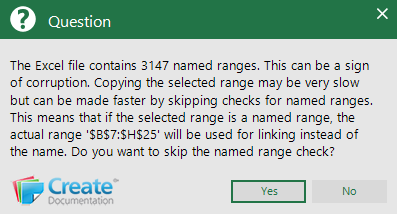
Select Yes and the table will be sent to PowerPoint or Word and the link will be displayed in the format '$B$7:$H$25' in the Links dialog.
Select No and the table will be sent to PowerPoint or Word and the link will be displayed in the format 'NamedRange' in the Links dialog.
When a workbook contains excess named ranges, updating an individual table or multiple tables linked using a named range may be very slow. In this scenario, it is better to click Yes when sending the table as Create will be able to update changes to the table faster. However, if rows or columns are added to the data you will need to manually edit the link to change the source range.
When a workbook has been in circulation for a long time and/or sheets have been inserted from other workbooks, named ranges will accumulate including ones that are inactive, hidden or broken. These will degrade the performance of the workbook and they will ultimately make it unusable. It is advisable to clean up workbooks in this state. Our product Repair will do this for you.
Related topics
Was this article helpful?
That’s Great!
Thank you for your feedback
Sorry! We couldn't be helpful
Thank you for your feedback
Feedback sent
We appreciate your effort and will try to fix the article