If a range of table data in the Excel workbook has been named, when exporting the data from Excel to Word or PowerPoint the range's name rather than the cell reference is used in the Link dialogue box in Word or PowerPoint. This makes the updating of tables more efficient because, regardless of the actual range or its location within a workbook, if the data range increases, decreases or moves (within the sheet), it will still be automatically picked up without having to reset the physical range.
Naming a Range in Excel
Select the cell range that you want to name.
Enter a range name into the Name box located at the left end of the Formula bar and press Enter to create the name.
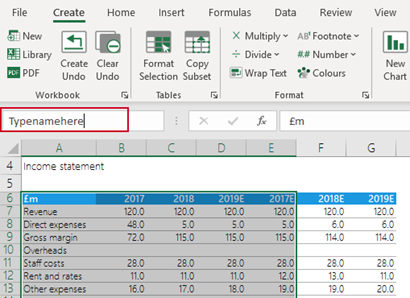
Alternatively, select the cell range that you want to name and on the Formulas tab, click Define Name in the Defined Names group.

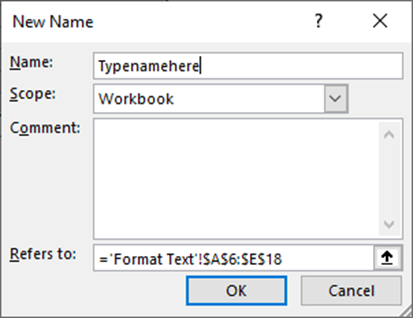
In the Name text box, type up to a 255-character name for the range (with no spaces). Click OK.
Updating Named Range Data in Word or PowerPoint
If a table has been given a range name in Excel and then copied to PowerPoint or Word using Create its range name will appear in the linked objects list in the Range column.
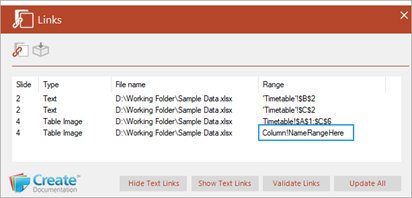
To update a named range in Word or PowerPoint:
In Excel make any changes to the original data, or the range size. Save the Excel file.
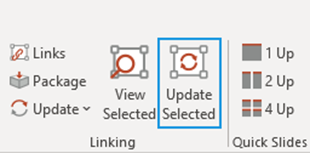
From the Linking group on the Create ribbon in Word or PowerPoint tab click on Update Selected.
Was this article helpful?
That’s Great!
Thank you for your feedback
Sorry! We couldn't be helpful
Thank you for your feedback
Feedback sent
We appreciate your effort and will try to fix the article