The Tables task pane enables you to format selected cells on your worksheet, in your organisation’s branding and then to send the cell selection to Word or PowerPoint with a link back to the original data. There are also tools to apply a row height or column width to a selection, a worksheet or a whole workbook.
To format data on your worksheet use the tools on the Tables task pane. Apply a base table format and then apply additional formatting, to e.g. totals and subtotals, if required.
Select Format Selectionon the ribbon or side bar.
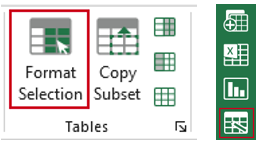
The Tables task pane opens at the Format Table panel.
- On your worksheet, select the data to be formatted.
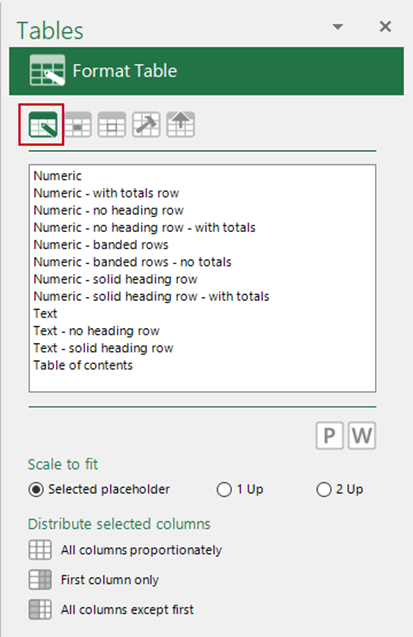
- Select a base table format from the list to format your selected data.
Applying one of these table formats will apply the correct font, font size, alignment and border style.
Once you have formatted the data, you can resize it to fit a placeholder in Word or PowerPoint.
Sizing Data to Fit Placeholders in PowerPoint and Word
You can resize a range of table data proportionately to fit the selected placeholder in PowerPoint or Word, while it is still in Excel. This is useful if you will be sending the tables to PowerPoint or Word as pictures and do not want them to be scaled to fit the placeholder when sending. The selected columns will be sized to the correct proportions in Excel and once in PowerPoint and Word they will be sized at 100%. Use this function before you copy across to PowerPoint or Word.
You can also choose a default scale option without selecting a placeholder.
Note the data will be sized by column width: row heights will not be adjusted.
- On your worksheet, select the data to be resized.
On the Format Table panel on the Tables task pane:
- Select the Word or PowerPoint icon depending on where you are copying to.
- From Scale to fit select the placeholder size to which the whole selection should be sized. The placeholder settings on which this sizing will be based can be set in your User Settings in Word or PowerPoint:
- Selected placeholder to scale the selected data to fit the selected placeholder in PowerPoint or Word.
- 1 Up to scale the selected data to fit a 1 Up placeholder in PowerPoint or Word (usually the full-width of the page).
- 2 Up to scale the selected data to fit a 2 Up placeholder in PowerPoint or Word (usually half the width of the page).
- From Distribute selected columns select how the columns should be distributed:
- All columns proportionately – will scale the selected data range to fit the selected placeholder by distributing all columns proportionately.
- First column only – will scale the selected data range to fit the selected PowerPoint placeholder by resizing the width of the first column and retaining the existing width of the remaining columns.
- All columns except first – will scale the selected data range to fit the selected PowerPoint placeholder by retaining the existing width of the first column and resizing the remaining columns proportionately.
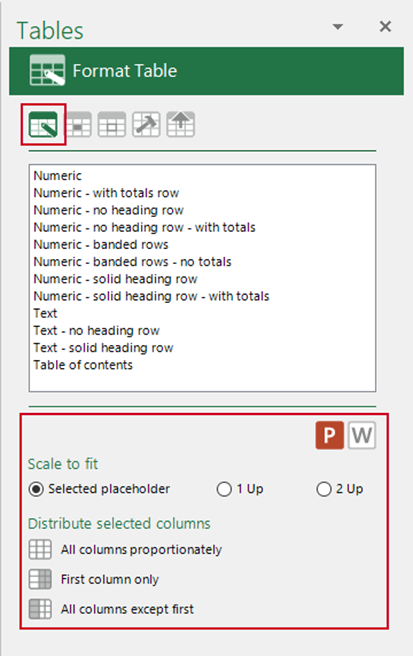
- The options for distributing columns can also be accessed from the Tables group on the Create ribbon (for PowerPoint only).
- You can edit the Scale to fit preferences at any time from the Format Table panel.
| Notes The data will be sized by column width: row heights will not be adjusted. You can set the defaults for Scale to fit in User Settings in Word or PowerPoint |
Formatting Cells
Once you have applied a whole table format to a selection of cells, you can apply additional cell formatting e.g. totals or subtotals.
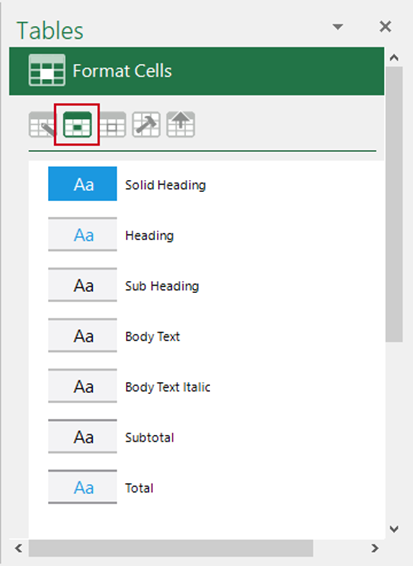
From the Format Cells panel, on the Tables task pane click an option in the list to apply a cell format to the selected cells.
Applying a cell format will apply the correct font, and border style. It will not affect the font size or alignment.
Formatting Borders
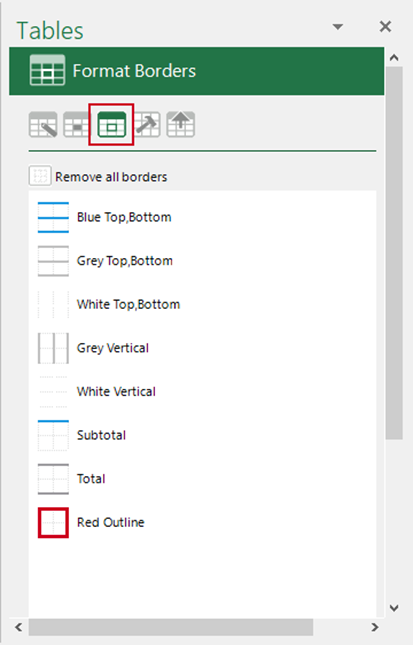
Borders will be applied accordingly when you apply a whole table format but to change these or to apply additional borders to the table, use the Format Borders function rather than native Excel. The line weights and colours will be in line with your organisation’s branding.
From the Format Borders panel click an option in the list to apply a border format to the selected cells or use the Remove all borders button to clear all borders.
Was this article helpful?
That’s Great!
Thank you for your feedback
Sorry! We couldn't be helpful
Thank you for your feedback
Feedback sent
We appreciate your effort and will try to fix the article