Use Create to export table data from Excel to PowerPoint or Word. Tables can then be updated in PowerPoint and Word using Create because they are linked to the original data.
There are several options available when copying tables to PowerPoint or Word.
Make sure you copy the table into a placeholder in Word or PowerPoint to ensure correct sizing and positioning on the page/slide.
______
In addition to using Quick Send to send tables from Excel, there are other methods available on the Tables task pane.
Make sure your cursor is in a placeholder in PowerPoint or Word to ensure correct sizing and positioning on the slide/page. In Excel, select the cells or data range to be copied to PowerPoint or Word.
Select Send Table on the side bar.

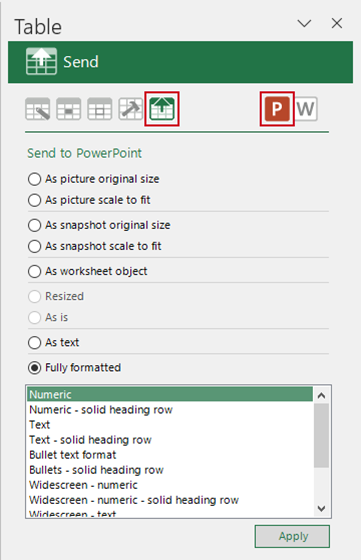
The Table task pane will open at the Send panel.
Choose PowerPoint or Word and then select your preferred method of copying
- As picture original size – copies and pastes the selection or named range into the placeholder without resizing it but reflecting the exact size in Excel including font size.
- As picture scale to fit – this is the same method used by Quick Send. The selection will be proportionally sized to fit the width of the selected placeholder.
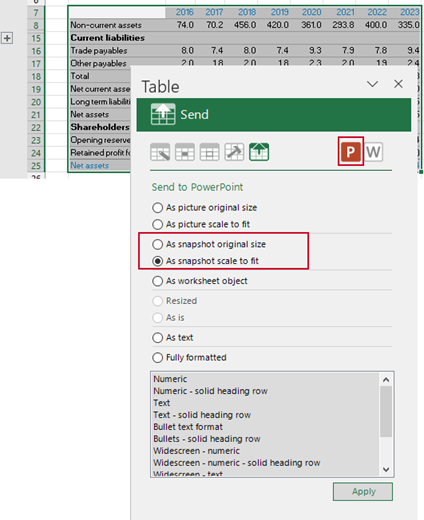
- As snapshot original size – copies a selection containing grouped or hidden data and pastes it into PowerPoint as a picture without resizing it. When updating using Create, the original view will be maintained.
- As snapshot scale to fit – copies a selection containing grouped or hidden data and pastes it into a selected placeholder in PowerPoint or Word as a picture, scaled to fit the placeholder. When updating using Create, the original view will be maintained.
- As worksheet object – copies the selection or named range and pastes it into PowerPoint or Word as a linked Excel worksheet object. Use Create to view and update the data so that you still have access to the Create tools in Excel.
- As text – See Article: Copying Linked Text to PowerPoint or Word
- Fully formatted – copies a range of data or named range from an Excel worksheet and pastes it into PowerPoint or Word as a formatted table. Once in PowerPoint/Word, the Excel data source details can be viewed, and the data can be updated or the table reformatted (if you have used Create to produce your PowerPoint presentation/Word document).
Note If the data changes in Excel, you can update the linked data via the Update button on the Create ribbon in your PowerPoint presentation/Word document. |
Copying Tables as Pictures
Table data copied to PowerPoint and Word as a picture is linked to the original source data in Excel and can be updated using Create.
Use the Scale to fit options on the Format Table task pane to resize the selection before copying.
See Sizing Data to Fit Placeholders in PowerPoint and Word.
Copying Table Data from the Clipboard to PowerPoint or Word
You can also copy data from Excel to the clipboard and use Create to paste it into PowerPoint or Word with a link back to the original data.
In Excel, select the table data and press CTRL+C to copy it to your clipboard.
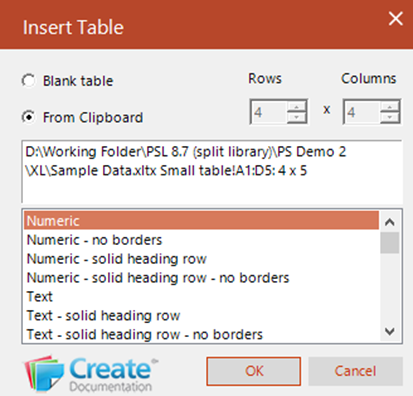
In PowerPoint or Word, select a placeholder on the slide/page so that the table is sized and positioned correctly. Select Insert Table on the ribbon or on the side bar to insert a new table.
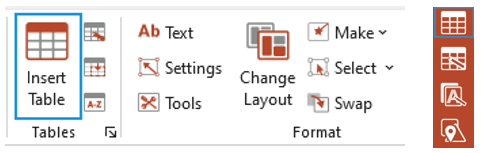
The dialog will highlight From Clipboard and the cell range and worksheet name.
Select a table format, click OK and the table data will be inserted, formatted and linked back to the Excel source.
Note If the data changes in Excel, you can update the linked data via the Update Selected button on the Create ribbon in your PowerPoint presentation/Word document. |
Copying Tables with Grouped or Hidden Data to PowerPoint or Word
If you have hidden rows or columns or if you have collapsed grouped data in your table in Excel, you can use either of the methods As snapshot original size or As snapshot scale to fit to copy the table as a snapshot as it appears in Excel. Using this method to copy tables maintains the original view when updating using Create.
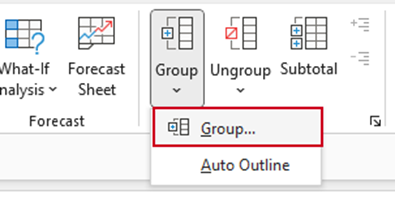
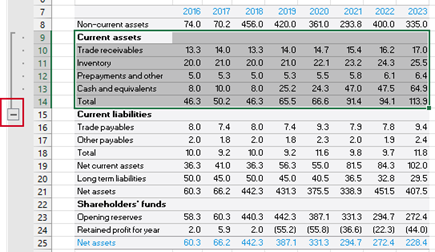
To collapse data, select the rows or columns that you wish to group and collapse.
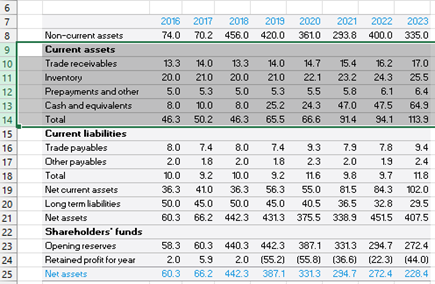
From the Outline group on the Data tab, select Group.
Select the Collapse button to collapse the grouped data.
Save the Excel file.
Select the data you wish to copy to PowerPoint or Word and from the Send panel on the Tables task pane choose PowerPoint or Word and then select either:
- As snapshot original size – to copy the selection and paste it into PowerPoint or Word as a picture without resizing it.
OR - As snapshot scale to fit – to copy the selection and paste it into a selected placeholder in PowerPoint or Word as a picture, scaled to fit the placeholder.
Regardless of the method used, when updating using Create, the original view will be maintained.
Note If your grouped or hidden data range changes, you will need to recopy the new range using Create. |
Was this article helpful?
That’s Great!
Thank you for your feedback
Sorry! We couldn't be helpful
Thank you for your feedback
Feedback sent
We appreciate your effort and will try to fix the article