Table data or charts that have been imported from Excel become linked objects in your PowerPoint presentation or Word document. The Linking group contains options for viewing and updating those links, copying and pasting linked objects between presentations and packaging up your presentation along with all the links. There is no limit to the number of linked objects or the number of related Excel files.
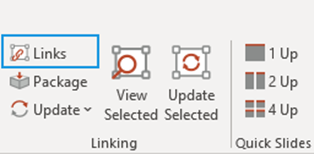
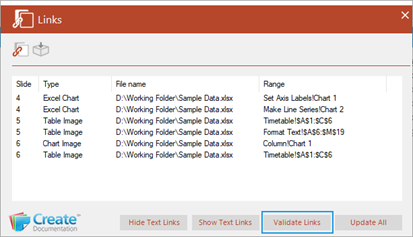
Select Links to view a list of the linked objects in your PowerPoint presentation or Word document.
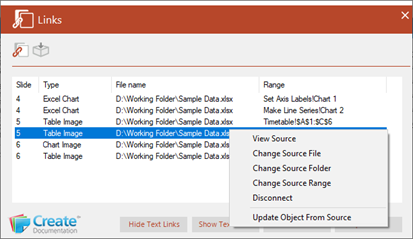
The dialog lists all the linked objects in the presentation/document.
As you click on any linked object in your presentation/document, that object will be highlighted in the dialog box making it easier to identify.
You can select an object or multiple objects and right-click to view (open), change, update or disconnect from the source data.
Viewing Excel Source Files
This function will open the source file and navigate to the source table data or chart in Excel. Make sure the source file isn’t already open – if it is, then a Read Only copy will be opened.
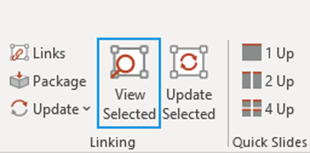
Select the object whose Excel source data you wish to view and select View Selected.
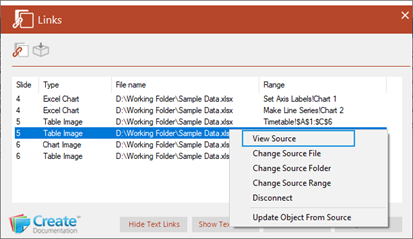
OR, right-click on the object in the Links dialog and select View Source.
Changing the Excel Source File
You may wish to link the object to a different file. Note though, that the range of data and the worksheet ribbon must have the same name as the original data, for this function to perform correctly.
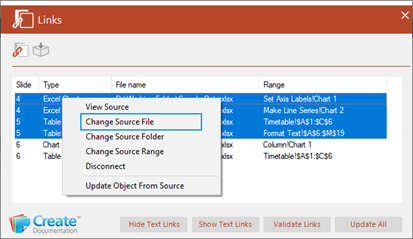
Right-click on the object (or select multiple objects by holding the SHIFT key down) in the Links dialog and select Change Source File.
Navigate to the new file location, select the file and click Open.
Changing the Excel Source Folder
You may wish to link the object to a different folder. Note though that the file, the data range and the worksheet ribbon must have the same name as the original data, for this function to perform correctly.
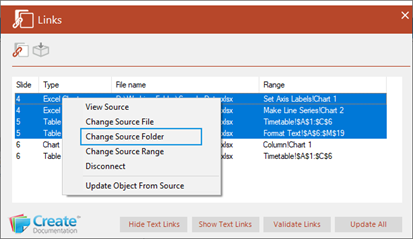
Right-click on the object (or select multiple objects by holding the SHIFT key down) in the Links dialog and select Change Source Folder.
Navigate to the new folder location and select the file and click OK.
Changing the Excel Source Range
You may wish to link the object to a different data range. Note though that the data range must be in the same file and folder as the original data copied over, for this function to perform correctly.
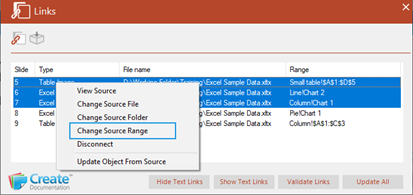
Right-click on the object (or select multiple objects by holding the SHIFT key down) in the Links dialog and select Change Source Range.
Type in the new data range or select Show to show the existing data range and then select the new data range click OK.
Disconnecting Linked Objects
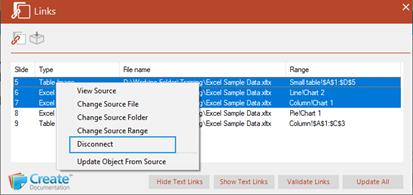
You can break the link or disconnect linked objects at any time. The chart or table will remain in the presentation/document, but it will no longer be linked to the original Excel source data.
Right-click on the object (or select multiple objects by holding the SHIFT key down) in the Links dialog and select Disconnect.
Validating Links
This function will check all the linked objects in your presentation/document to make sure they are still valid. If any of the links are missing, they will be highlighted in the Links dialog.
Right-click on the object (or select multiple objects by holding the SHIFT key down) in the Links dialog and select Validate Links.
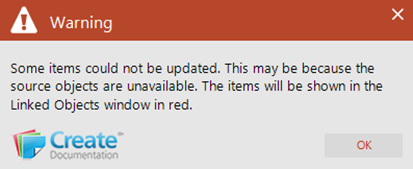
If any links cannot be found the following message is displayed.
You can continue to update all the remaining links but those that are missing will not be updated.
Use the Change Source File or Change Source Range options in the Links dialog to correct any missing links.
Was this article helpful?
That’s Great!
Thank you for your feedback
Sorry! We couldn't be helpful
Thank you for your feedback
Feedback sent
We appreciate your effort and will try to fix the article