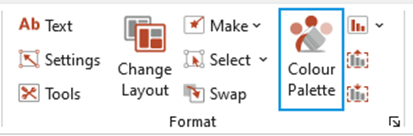
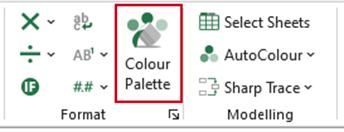
Access your organisation’s colour palette from the Create ribbon.
PowerPoint
Excel
Word
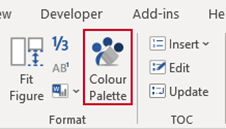
- Select Colour Palette.
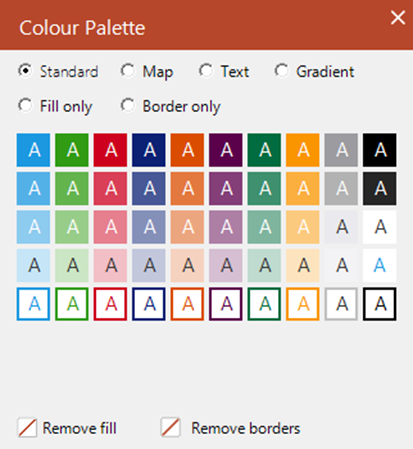
- Use the Standard colour palette to apply a fill and font colour to a shape and text.
- Use the Map colour palette to apply a fill and font colour to a map – this will also apply a white (or differentiating) border.
- Use the Text colours to apply a colour to text in cells.
- Use the pre-set Gradient colour palette to apply gradient fills to worksheet cells (if these are part of your branding).
- Use the Fill only colours to apply a fill to cells in a table or shapes.
- Use the Border only colours to apply a border to cells in a table or shapes.
- Remove any fills on cells or shapes by selecting Remove fill.
- Remove any borders on cells or shapes by selecting Remove borders.
You can “drag” the palette onto your desktop and it will remain there until closed. The colour hierarchy begins in the first square. If you hover your cursor over the colour, the name of the colour will appear.
| Notes Remember to close the colour palette once you have applied your selection. To close the colour palette, click on the “X” box in the top right-hand corner. You cannot use the PowerPoint colour palette in Word or Excel or vice-versa. It is recommended to use the colours in the order shown (left to right). If the colour palette window becomes lost behind other windows, as can happen if the user goes to slide show mode, the palette can be brought back to the front by clicking the colour palette ribbon button. The palette window is also shown in the task bar. Check Shapes in PowerPoint for preformatted diagrams that might assist in the creation of your object/drawing. |
Was this article helpful?
That’s Great!
Thank you for your feedback
Sorry! We couldn't be helpful
Thank you for your feedback
Feedback sent
We appreciate your effort and will try to fix the article