Brand Check checks a presentation for branding elements, such as fonts, colours, double spaces, highlighted text and summarises deviations in a task pane. You can then click on the results to go to that item in the presentation and Brand Check will offer to fix the issues for you.
Select Brand Check on the side bar or from the Options dropdown on the Create ribbon.
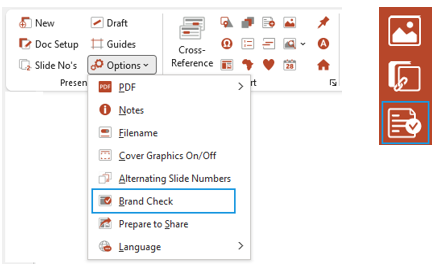
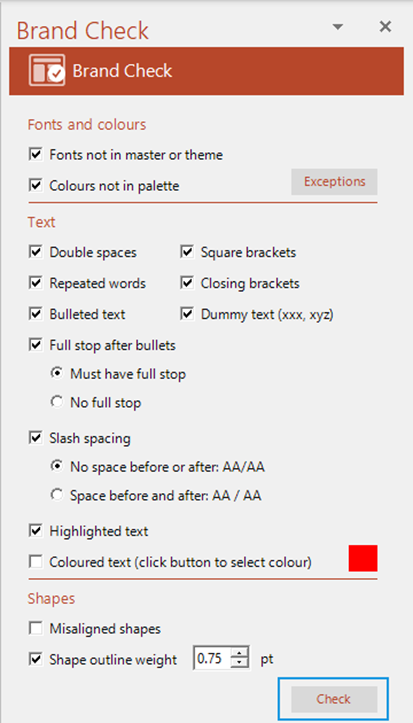
The Brand Check task pane will open. Select which rules you wish to be checked.
Brand Check – fonts and colours
- Fonts not in master will check for any fonts that are not in any of the slide masters in the template.
- Colours not in palette will check for any colours in the presentation that are not part of your colour palette.
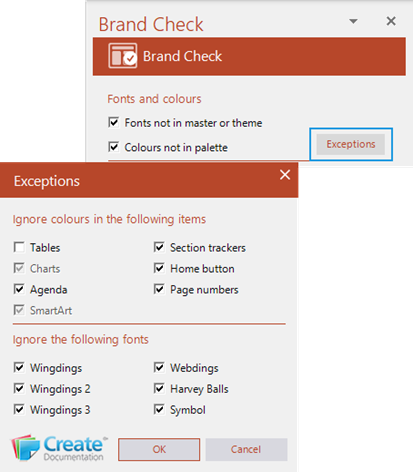
- Click on Exceptions to open a dialog from where you can choose to exclude any fonts or colours from the Brand Check:
- select any of the listed items to ignore when running Brand Check e.g. tables, charts, agenda, SmartArt, section trackers, home button, page numbers.
- select any of the listed fonts to ignore when running Brand Check. This is useful if, for example, your bullet style is a wingdings font.
Brand Check – text
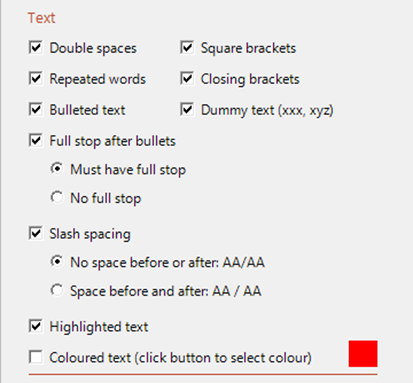
- Double spaces will check for any occurrences of double spaces within text.
- Repeated words will check for any consecutive repeated words within text.
- Bulleted text will check for any bulleted text that does not match the master i.e. bullet, font, indent etc.
- Full stop after bullets will check all bulleted text for consistency of full stops/periods, according to the user’s selection.
- Slash spacing will check all slashes for consistency of spacing before and after, according to the user’s selection.
- Highlighted text will check for any text that has been highlighted using the native PowerPoint highlighting tool.
- Coloured text will check for text of a particular colour. Check the box and click on the colour button to open the colour dialog where you can specify the colour.
- Square brackets will check for any square brackets [ ].
- Closing brackets will check that all opening brackets have an associated closing bracket.
- Dummy text (xxx,xyz) will check for any instances of a word of 2 or more letters consisting of a combination of just the letters x, y & z.
Brand Check – shapes
- Misaligned shapes will check that all shapes and placeholders are aligned. It will look for slight misalignments in specific conditions to avoid having too many irrelevant warnings. Footers, placeholders, centre aligned shapes and shapes which are misaligned by more than 10 pt are ignored as this is assumed to be intentional.
- Shape outline weight checks that all shapes in a presentation have the same outline weight. You can choose a preferred weight to be applied to all or selected shapes.
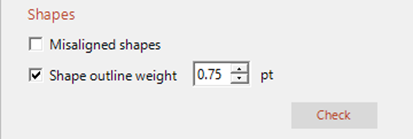
- When you have selected the options you wish Brand Check to check, select Check.
Brand Check Results
The results of the brand check will be listed below.
Click on any item to go to that item in the presentation. You can either fix the items or leave them as they are.
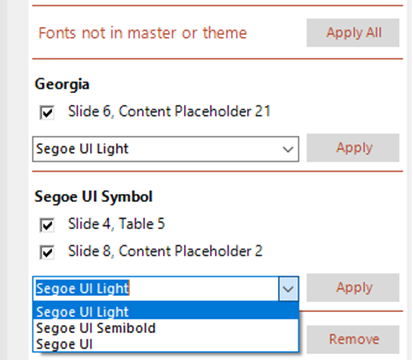
Any fonts found that are not in the master slides or in the font theme will be listed in the results pane. Each font found will be listed separately. The suggested replacement will be displayed in the font field.
To fix a font:
- Select Apply All to apply all the suggested fonts.
- OR check the box next to the item(s) you wish to fix and from the font dropdown, select the font you wish to be applied (the fonts in the dropdown will be based on the font theme of your presentation).
- Select Apply to apply the selected font.
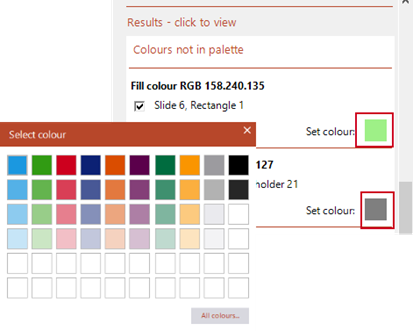
To fix a colour:
- Check the box next to the item(s) you wish to fix and click on the colour button to open the colour palette of the current presentation.
- Select the colour you wish to be applied.
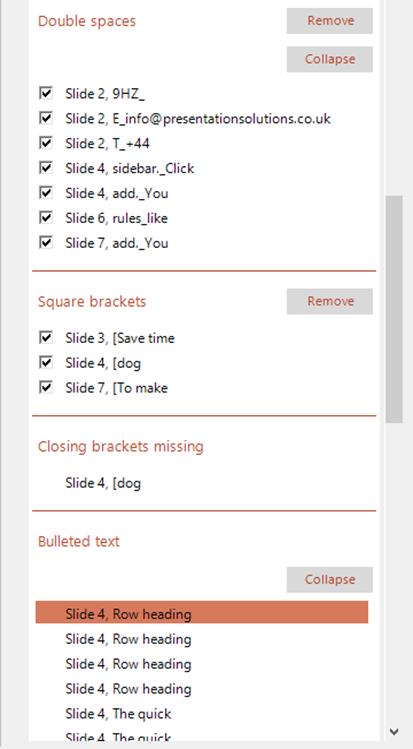
- Double spaces – expand to view the results and click on an individual result to select it in the presentation. Fix by checking those you wish to remove and clicking on Remove.
- Square brackets – expand to view the results and click on an individual result to select it in the presentation. Fix by checking those you wish to remove and clicking on Remove.
- Closing brackets missing – expand to view the results and click on an individual result to select it in the presentation. Add a closing bracket where necessary.
- Bulleted text – expand to view the results and fix manually if required.
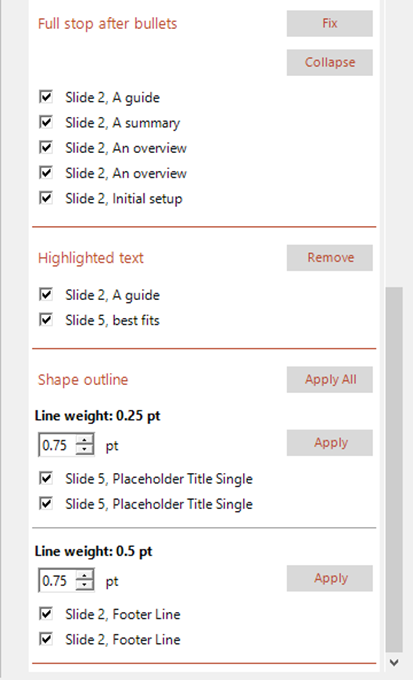
- Full stop after bullets – expand to view the results and click on an individual result to select it in the presentation. Fix individually, those selected or all (this will apply or remove the full stop at the end of bulleted text, depending on your selection in Brand Check).
- Highlighted text – expand to view the results and click on an individual result to select it in the presentation. Fix by checking those you wish to remove and clicking on Remove.
- Shape outline – expand to view the results and click on an individual result to select it in the presentation. Fix by checking those you wish to remove and clicking on Apply to apply a new line weight.
| Notes Rerun Brand Check at any time by scrolling back up the task pane and selecting Check until you clear the results pane. |
Was this article helpful?
That’s Great!
Thank you for your feedback
Sorry! We couldn't be helpful
Thank you for your feedback
Feedback sent
We appreciate your effort and will try to fix the article