Troubleshooting sending tables from Excel to PowerPoint/Word with the As Picture options.
There are two Windows settings which can impact the size and formatting of the picture in PowerPoint. Issues might include variable row heights between users and parts of the range selected in Excel not appearing in PowerPoint. The users in your team should ensure that they have the same settings to ensure that they produce exactly the same results when using the Create Send Table, As Picture function.
1. Default printer driver
In order to produce the best quality images and the most accurate rendering of fonts and font colours for the Create Send Table, As Picture function, Create uses the native Excel Copy as Picture, As shown when printed option. This option is governed by a user’s Windows default printer driver. To ensure identical sizing of the table pictures in PowerPoint all users should have the same printer set as their default.
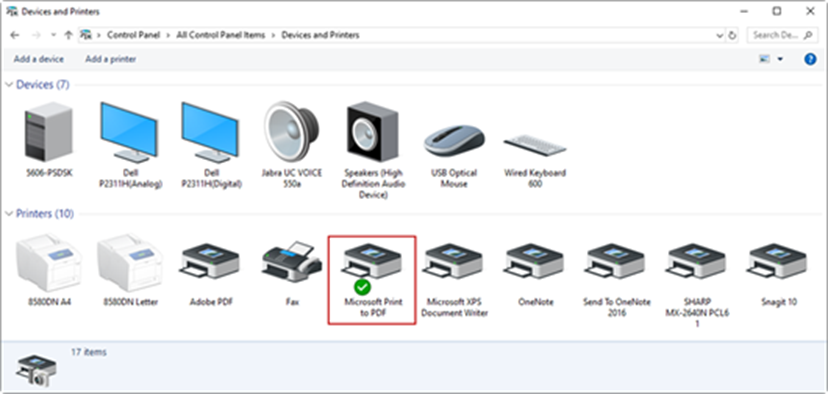
Test changing the printer that you and your colleagues have set as your default in Windows. A good option to use for the default is the Microsoft Print to PDF driver as all users will have this available. You can choose a different printer to the default from the print dialog in your Office program when you do wish to print.
To set your default printer, follow the below steps:
- Open Control Panel
- Select View Devices and Printers
- From the list of printers, right-click on a colour printer and choose Set as default printer.
- Once done, the default printer will display a green tick as shown in the screenshot below.
2. Display settings
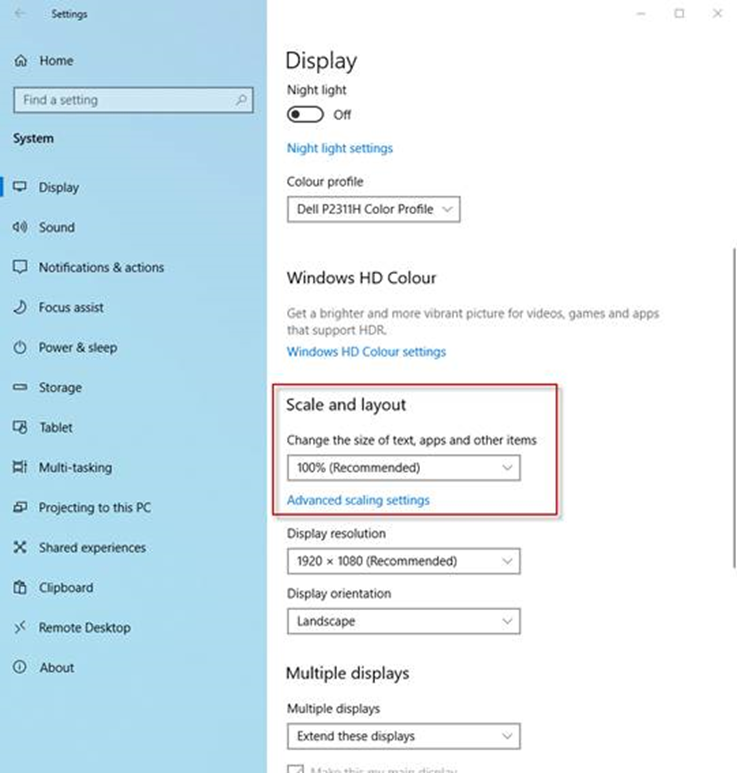
The size of the picture of the table in PowerPoint can also be impacted by your display settings. All users need to have the scale setting set to the same percentage. It doesn’t matter what value you choose as long as all users choose the same value. Older devices tend to be set to 100% but with the advent of higher resolution screens it is becoming more common for a higher percentage to be set.
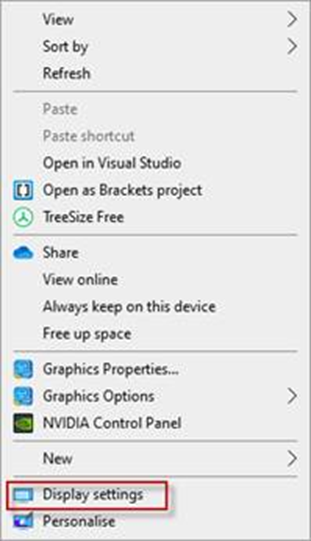
- To view/edit your Display settings, right-click on the Desktop and select Display settings.
- In the Display dialog scroll down to the scale and layout section. You will see your current scale percentage displayed, in the example in the screenshot the scale is set to 100%.
Please don’t hesitate to contact support if you have any further queries.
Was this article helpful?
That’s Great!
Thank you for your feedback
Sorry! We couldn't be helpful
Thank you for your feedback
Feedback sent
We appreciate your effort and will try to fix the article