When users are seeing individual characters from an Excel table displaying differently when linked in PowerPoint as a picture - this article includes two troubleshooting methods to help correct the issue.
Check Decimal Separator
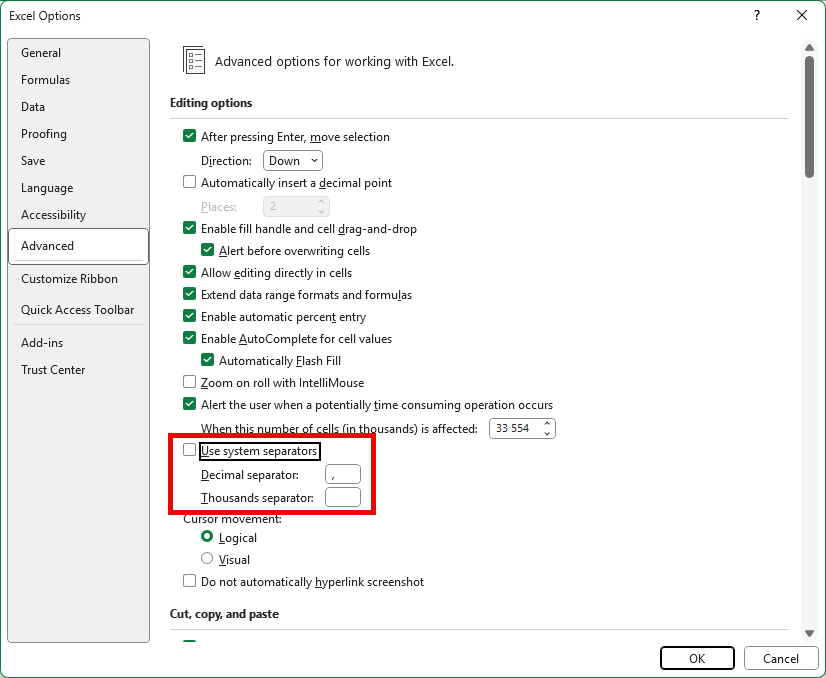
1. Select File > Options in Excel to display the dialog shown below
2. Select Advanced from the list on the left
3. Uncheck Use system separators
4. Set a comma as the Decimal separator
5. Set a space as the Thousands separator
6. Click OK
7. Now retest sending a table to PowerPoint
Check Regional Settings
1. In Windows - open Control Panel (Win + R → control → Enter)
2. Select “Region.”
3. On the Formats tab, click “Additional settings...”
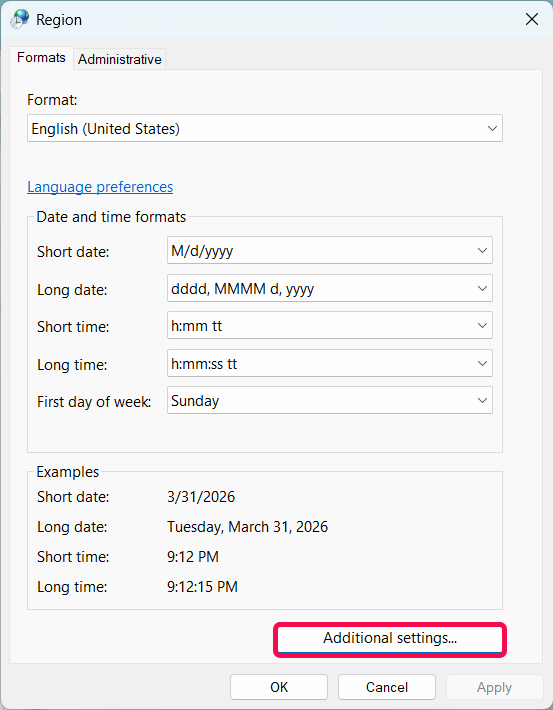
4. On the Numbers tab, find “Decimal symbol.”
5. Change the symbol to your preference.
6. Click OK, then OK again.
Was this article helpful?
That’s Great!
Thank you for your feedback
Sorry! We couldn't be helpful
Thank you for your feedback
Feedback sent
We appreciate your effort and will try to fix the article