Occasionally the following message will be displayed when you attempt to send a table to PowerPoint.
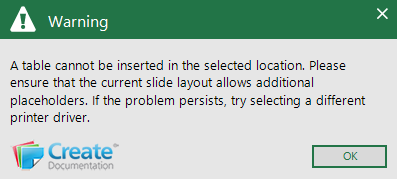
A table cannot be inserted in the selected location. Please ensure that the current slide allows additional placeholders. If the problem persists, try selecting a different printer driver.
There are a few frequent reasons for this message to appear:
- Your default printer driver is corrupt or unavailable. Please following the Set default printer driver steps below to select a different printer driver. Microsoft Print to PDF is often a good universal option. When you print your documents you can choose a alternative printer in the print dialog.
- You have multiple sheets selected in your workbook. Ensure that you only have one tab selected and try again.
- The slide that you are attempting to insert the table into is not allowing the object to be inserted. Insert a new layout from the Create Layouts and try again.
Set default printer driver
To set your default printer, follow the below steps:
- Open Control Panel
- Select View Devices and Printers
- From the list of printers, right-click on a colour printer and choose Set as default printer.
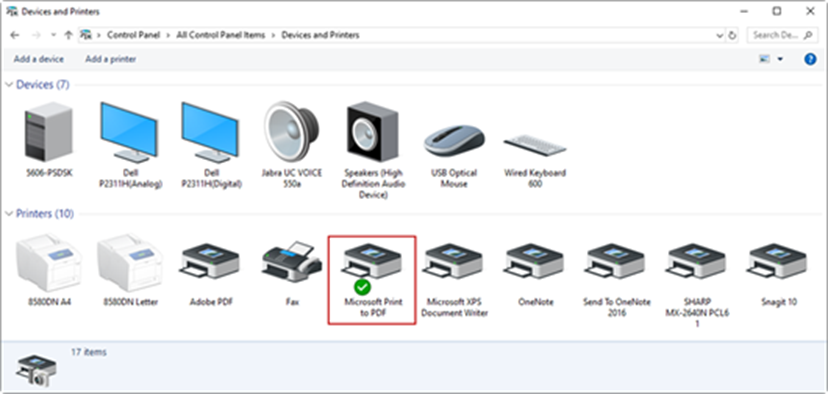
- Once done, the default printer will display a green tick as shown in the screenshot below.
Related topics
Table as picture - printer and display settings
Send Create Error Log in Version 10
Send Create Error Log in Version 8
Was this article helpful?
That’s Great!
Thank you for your feedback
Sorry! We couldn't be helpful
Thank you for your feedback
Feedback sent
We appreciate your effort and will try to fix the article