Registration
This process requires internet access at initial registration and then every 30 days to verify the user is still using the licence. If our website cannot be reached within the 30 day period, Create will continue to work for another 7 days after which the user will be shown a warning, informing them that they must connect to the internet soon to validate their licence. For 10 days, if the user does not connect to the internet, they will be shown a daily warning.
At the end of this 17 day grace period, they will be unable to use Create until they have successfully validated their licence. The Create tab is still shown but functions do not work.
Once internet access is re-instated Create will validate the registration for another 30 days.
External Product Testing
Create is built using the latest tools provided by Microsoft specifically for building Office add-ins. The tools are used in accordance with Microsoft's recommended best practices and have robust exception handling to ensure errors occurring within the add-in code do not crash the host Office application.
A regression test is performed on every build of Create to ensure there are no negative impacts on Office applications.
License Key Location
The registration process accesses the Presentation Solutions Website www.presentationsolutions.co.uk and grants a license to a user, sending back the license key which is stored in the registry in HK Current User\Software\Presentation Solutions.
Using Create with Roaming Profiles
Create V10 only has to be installed once when roaming profiles are used.
The Create software is installed into the ClickOnce cache which is located in the user profile in the path %USERPROFILE%\AppData\Local\Apps\2.0. These files do NOT travel with the roaming profile.
When the user moves to another machine the ClickOnce installer detects that the software is not in place and will install them from the deployment location before initialising the Create add-in.
If a user logs into more than one PC without roaming profiles enabled Create V10 will need to be installed under the user login on each PC.
Using Create in Virtual Systems (e.g. Citrix)
In virtual systems such as Citrix and Microsoft SMS traditional applications and add-ins are run in the server and shared by the users remotely.
ClickOnce applications are installed into the users own folder (instead of the Program Files folder) so each user will have their own copy of the application on their PC, it will not reside in the server.
This will be the case for Create.
When we issue the first version of V10 you will be sent a link to the Setup.exe bootstrapper which can be downloaded onto your server.
The Setup.exe will need to be run once for each user that logs on to the PC and not run again for subsequent logins of that user.
This can be done using a start-up script appropriate for the target environment.
Once installed further updates (either automatic or requested by the user) will be done by Create directly via the Internet to the user’s PC.
The Documents folder may require between 100MB and 2GB space, depending on the size of the customisation files (templates and settings).
Note re Citrix: In some cases, the client’s Citrix setup may be set to delete the contents of the AppData/Local folder on log off. Create is a VSTO add-in. VSTO add-ins are installed via Click Once Deployment which places application files in the “AppData\Local” folder. In clients where Citrix users have the contents of this folder deleted when they log off, this causes Create to re-install every time a user logs on and starts Office. However, there is a workaround for this scenario using “junction points”. These work like shortcuts and allow you to create a virtual folder whose contents are actually in a different folder. At client site, their IT should create a virtual folder (junction point) inside the AppData\Local folder where Office expects to find the add-in files. The contents of this folder will actually be in a folder inside the AppData\Roaming folder, which doesn’t get deleted, but they will appear to Office to be inside the AppData\Local folder. More information: |
Create Prototype Add-in for MSOffice
To allow scripts to be written and tested for you environment, before you receive Create you may wish to download our test add-in
- Select this link: http://download.presentationsolutions.co.uk/products/prototypeaddin/psl_prototypeaddin_setup.exe
- The add-in displays a new tab on the office ribbon:

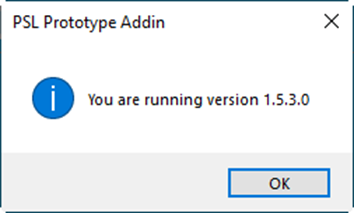
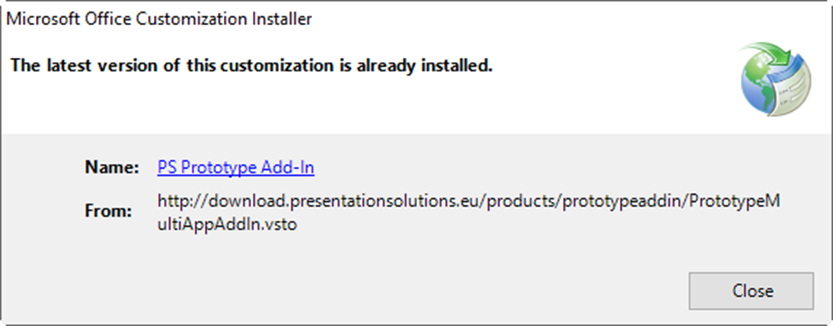
- Functions Show Version and Check for Updates are provided so that correct installation can be verified.
Show Version Number displays the software version.
Check for updates reports whether a new update is available or not.
Was this article helpful?
That’s Great!
Thank you for your feedback
Sorry! We couldn't be helpful
Thank you for your feedback
Feedback sent
We appreciate your effort and will try to fix the article