Note: these instructions refer to updating ClickOnce installations of Create. If you are deploying Create using an MSI you should refer to Article - Installation via MSI
Upgrading to V10 from an earlier Version of Create
- Any versions prior to version 8.0 must first be unregistered and uninstalled. Failure to do so will adversely affect the installation.
- Check that you have the necessary pre-requisites as these are different depending on the version you have installed. See Article - Software Pre-requisites
- You can then follow the installation steps in this guide. See Article - Installing Create via Web Server
- If you are updating from version 8, the Create Office ribbon and message boxes will look slightly different, but the process is the same as updating V10, as described below.
Updating Create V10
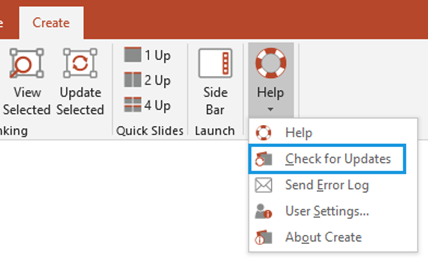
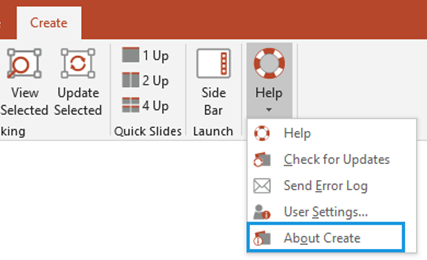
- Create can be upgraded by either double clicking the Setup Icon, right clicking the Create entry in Control Panel | Programs and Features or from the Create ribbon, go to the Help dropdown, and select the Check for Updates option:
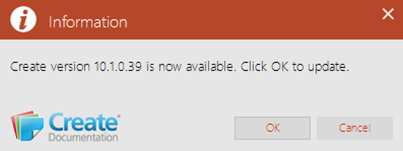
- The following dialog will display if an update is available. Click OK to update.
- If the latest version is installed then this dialog is shown.
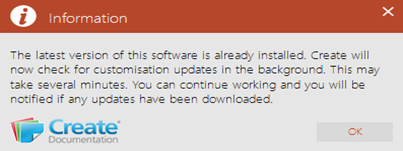
Note: If you do not check for updates, Microsoft Customization Installer will silently check if an update to the software or customisation is available every 14 days.
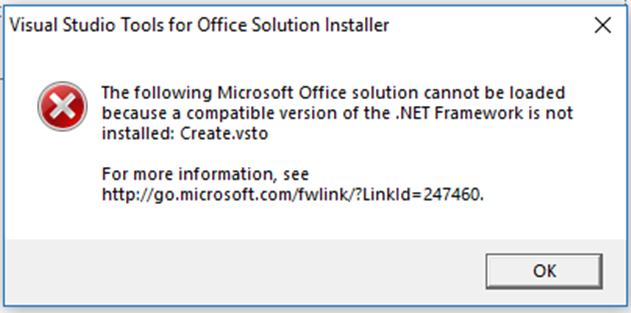
Note that Create 10.5 onwards require Microsoft .NET Framework 4.7.2 whereas earlier versions of Create 10 require Microsoft .NET Framework 4.6.2. If an attempt to update to Create 10.5 from an earlier version of Create is made and .NET Framework 4.7.2 is not installed, the following message will appear.
After Updating Create I still see the same version
If a Background Office process (for more information, see Article - Possible Issues and their Causes (section: Background Office Processes) remains active even though you followed the updating instructions above and closed all open Office applications before updating, Create may not be able to correctly load the new version.
Use your task manager to ensure all Office applications are closed and if the problem persists, please restart/reboot your PC.
How do I find out the Version Number I have installed?
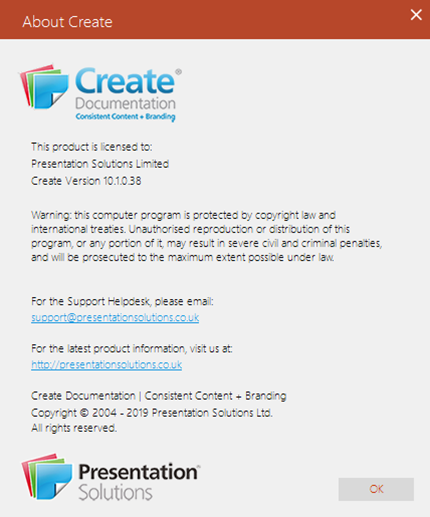
- You can check the version number installed by selecting About Create on the Help dropdown
- The Version number and License information is captured on the dialogue that appears.
Was this article helpful?
That’s Great!
Thank you for your feedback
Sorry! We couldn't be helpful
Thank you for your feedback
Feedback sent
We appreciate your effort and will try to fix the article