Enterprise clients who have Office 365 with Azure Active Directory (Azure AD) can use an alternative licensing method to allow user registration for Create, Compare and Repair based on their Azure AD domain authentication. Please contact Support if you are interested in using this licensing method.
The key benefit is that there is no requirement for a Client Portal nominated Administrator/s to pre-enable users as with Manual Licensing.
- Names added to the Azure AD will enable the user to use the software.
- Names removed from Azure AD will not be able to access the software.
To enable this, the following needs to be in place:
- Users must have Office 365 with Azure AD.
- Azure AD Authentication consent must be provided by the client IT Administrator – which will be part of the onboarding process. A PS member of staff will initiate this with them.
- The client IT Administrator must also provide PS with the company domain/s in use.
Please note:
|
Reviewing or Managing User Licences
- Azure AD licensing creates a new user record and enables a licence for any authenticated member of an allowed domain, within the Client Portal.
- Once a user is removed they can no longer register or validate. Please note this can also be done directly in the Client Portal.
At Registration
This process requires access to our web service for the initial registration – where the user is a member of the customer’s Active Directory. The registration checks and validates the license on first use and thereafter every 30 days.
Validation
After initial registration, Create needs to validate its licence every 30 days via the internet. This occurs silently in the background and does not require a browser or any user interaction.
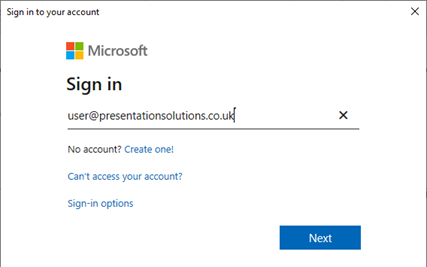
- Occasionally, users will be prompted to authenticate by signing in using the Microsoft login window.
- If our web service cannot be reached, Create will continue to work for another 7 days.
- If our web service still cannot be reached, Create will continue to work for another 10 days, however, users will see a warning informing them that they must connect to the internet soon, to validate their licence. This message will show once a day.
- If after the 17 day grace period, the web service still cannot be reached, the user will be unable to use Create until they have successfully validated their licence. The Create tab is still shown but functions do not work.
- Once internet access is re-instated Create will validate the registration for another 30 days.
License Key Location
The registration process accesses the Presentation Solutions web service and grants a license to a user, https://webservices.presentationsolutions.co.uk/licensing/LicenceValidation2.svc
sending back the license key which is stored in the registry in: HKEY_CURRENT_USER\Software\Presentation Solutions.
Web Services URL
Create connects to a web service at the following URL to determine if Active Directory licensing has been enabled by Presentation Solutions: https://webservices.presentationsolutions.co.uk/licensing/LicenceValidation2.svc. Create then authenticates the user at the following URL: https://login.microsoftonline.com and connects to a licensing API at https://cloudsync.presentationsolutions.co.uk.
It transmits the following data collected by Create, in XML form, for initial licence registration:
- Azure AD domain, ID and display name
- Create and Office version numbers
- Create product and customer codes (from Create’s customisation files)
Then monthly for further licence validation and billing reports:
- Azure AD domain, ID and display name
- Create and Office version numbers
- Create product and customer codes
The data is compared to licence data held in the licensing system database. The server then replies with an XML response containing a licence token, assuming the request is valid. This token is stored in the user’s Windows registry. Licence information stored in the registry is validated the first time Create is used in each Office session. On initial registration and ongoing, licences are validated by email address and product codes.
The licensing web service and its database are hosted in Windows Azure in Microsoft’s “West Europe” region. According to the Azure website, “West Europe” servers are located in the Netherlands. Data is not distributed across regions so will not be sent outside of Europe, to the best of our knowledge. Microsoft has a long-standing commitment to privacy. More information about The Azure Privacy Statement describes the specific privacy policy and practices that govern customers' use of Azure can be found on this link.
http://azure.microsoft.com/en-gb/support/trust-center/privacy/
Error Logging and Reporting
Within Create there is an error log upload facility which users can nominate to send to us if they are experiencing problems in using Create. The information captured in the log gives us an insight into the cause of the error (please note we do not see any confidential data or screenshots or details from other applications running).
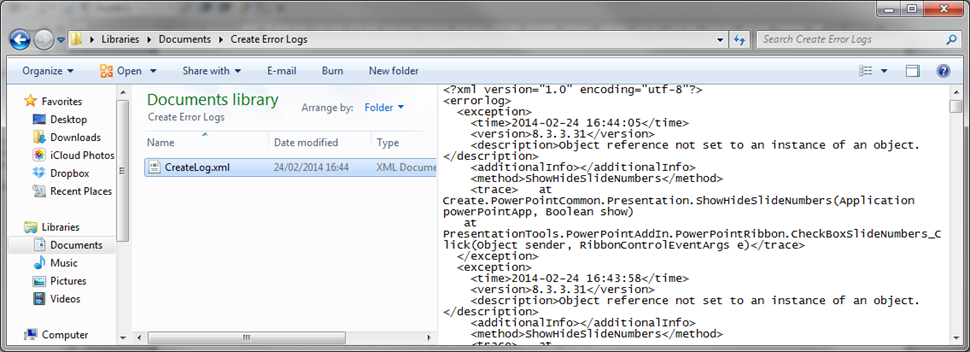
All errors are captured in the User profile. Errors are recorded in the folder which can be found in: Documents\Create Error Logs\CreateLog.xml
This also uses a web service at this URL: https://webservices.presentationsolutions.co.uk/licensing/ErrorService2.svc
Typical content of the Create error log:
Was this article helpful?
That’s Great!
Thank you for your feedback
Sorry! We couldn't be helpful
Thank you for your feedback
Feedback sent
We appreciate your effort and will try to fix the article