Overview
In Create v10 nominated Authors at the client site will be able to upload, delete and edit their own content and assets using the Create Cloud. Changes made by Authors will then be synchronized to all V10 users.
Set Up by Presentation Solutions
Presentation Solutions IT will set up a dedicated cloud storage space for each client.
Set Up by Client IT
In order to prevent the editing of templates and library slides by unauthorised personnel, the Create cloud is secured using Azure Active Directory Authentication.
For Create v10 to authenticate users against your organisation’s Active Directory, an IT AD administrator must register Create and give consent. This can be achieved by clicking the link below (which will take you to the Presentation Solutions Customer Portal Cloud Sign-up page).
https://client.presentationsolutions.co.uk/Authorisation/Cloud/Authorise.aspx
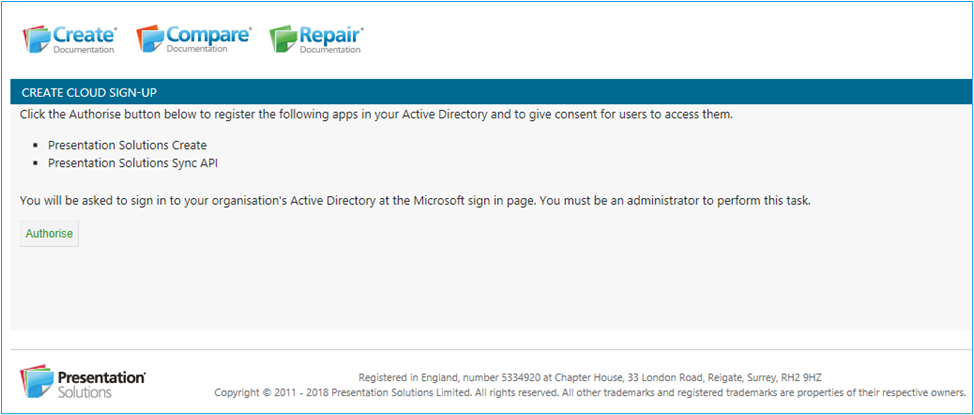
The IT Administrator must click the Authorise button to redirect to an Active Directory login page. Alternatively, the login page can be accessed directly using the following link.
The Microsoft Active Directory login dialog will appear.
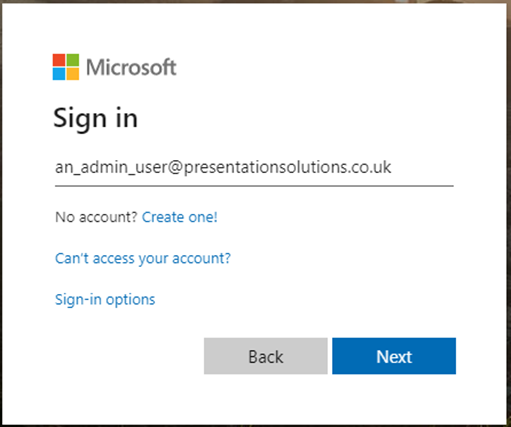
Please log in using your credentials. Once logged in, the admin consent page will appear.
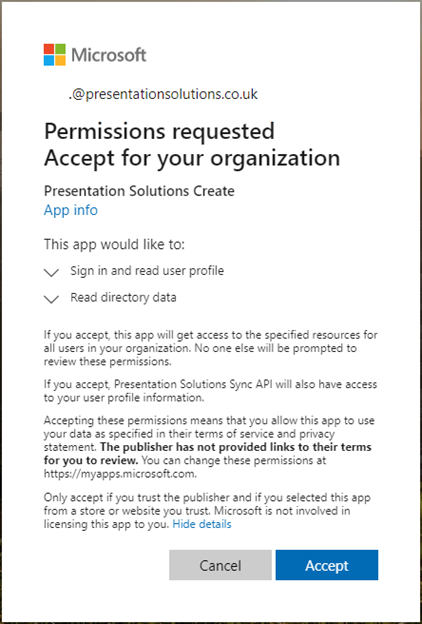
Please select the Accept button, to register Create in your organisation’s Active Directory and give permission for Create to make authentication requests.
The app name is Presentation Solutions Create
The app ID is 1e7b1279-46c3-45df-8554-93013747d63a
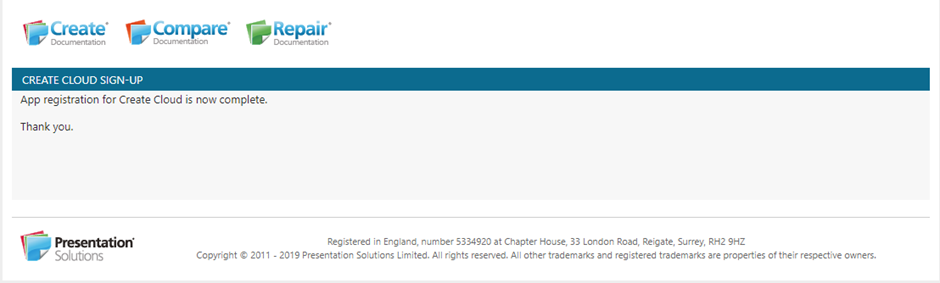
Once consent has been granted, the Create Cloud Sign-Up page in the Presentation Solutions Client Portal will confirm the setup is complete.
Please ensure that access to the following URLs is not blocked from user computers.
Create V10 needs to access an API at the following URL to synchronise templates and settings: https://cloudsync.presentationsolutions.co.uk
File may then be downloaded, as required, from this Microsoft Azure storage account: https://assetsynch.blob.core.windows.net
Active Directory authentication is performed at the following URL: https://login.microsoftonline.com
User and Group Set Up
If you opt to restrict access to user-generated assets (slides, shapes, templates etc.), users and user groups must be configured in the client portal. If you wish to implement user groups please contact the support team at Presentation Solutions who can set this up for you.
Was this article helpful?
That’s Great!
Thank you for your feedback
Sorry! We couldn't be helpful
Thank you for your feedback
Feedback sent
We appreciate your effort and will try to fix the article