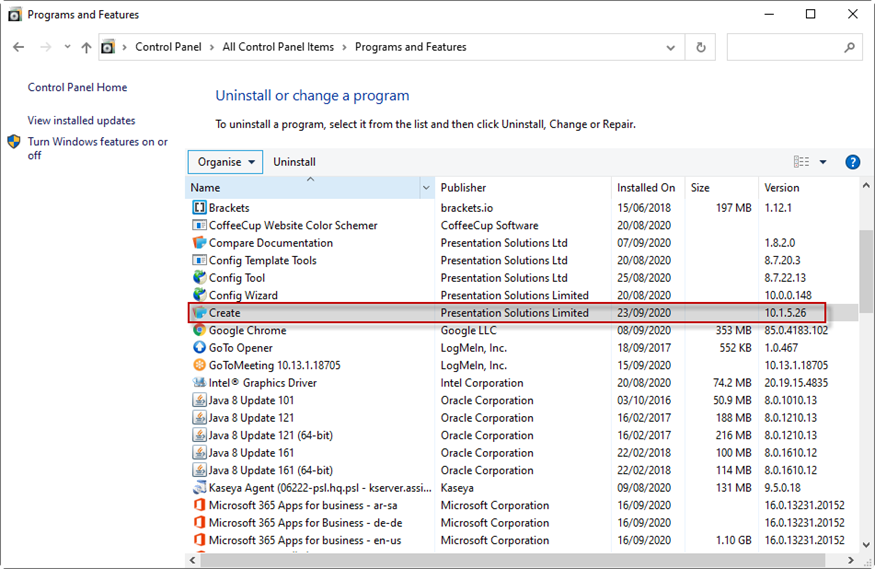
Whatever its original method of installation Create can be uninstalled via Control Panel | Programs and Features.
- If the user no longer requires Create then their licence should be deactivated on the portal. The Portal Administrator(s) enabled for your organisation will be able to deactivate the user. Otherwise, contact support@presentationsolutions.co.uk.
- Select the entry associated with Create in Control Panel | Programs and Features and select Uninstall:
Uninstallation via a Command Line
The following command line can be used to uninstall a ClickOnce installation of Create: [Program Files]\Common Files\Microsoft Shared\VSTO\10.0\VSTOInstaller.exe /Uninstall [Path to VSTO file]
For example:
C:\Program Files\Common Files\Microsoft Shared\VSTO\10.0\VSTOInstaller.exe /Uninstall file:///X:/Create_Installation_Files/Create.vsto
You can confirm the correct command line by looking in the registry under:
HKEY_CURRENT_USER\Software\Microsoft\Windows\CurrentVersion\Uninstall and finding the key that corresponds to Create. (This key should have “Create” as the DisplayName value and “Presentation Solutions Ltd” as the Publisher value.)
The uninstall command line should be contained in the UninstallString value.
You can also add a silent switch “S” like this:
[Program Files]\Common Files\Microsoft Shared\VSTO\10.0\VSTOInstaller.exe /S /Uninstall [Path to VSTO file]
Was this article helpful?
That’s Great!
Thank you for your feedback
Sorry! We couldn't be helpful
Thank you for your feedback
Feedback sent
We appreciate your effort and will try to fix the article