Checking Load Behaviour of Add-in in Registry
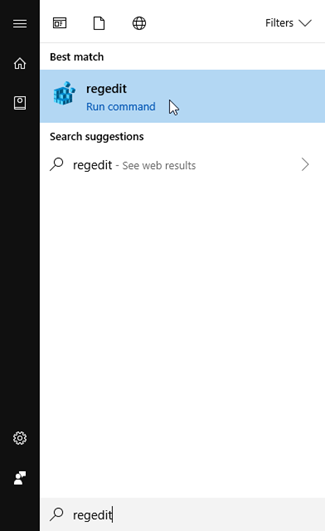
If after re-enabling (see Article: Create tab is not displaying on Ribbon), the add-in still does not load, type RegEdit Open the registry and select the required Add-in entry (see below). Check that the LoadBehaviour field has the value of 3 which indicates the Add-in will be loaded automatically.
To open the Windows registry, follow the steps below.
1. Click the Start button.
2. In the Start Menu, either
in the Run box or the Search box, type regedit
and press Enter.
(If prompted by User Account Control, click Yes to open the Registry Editor).
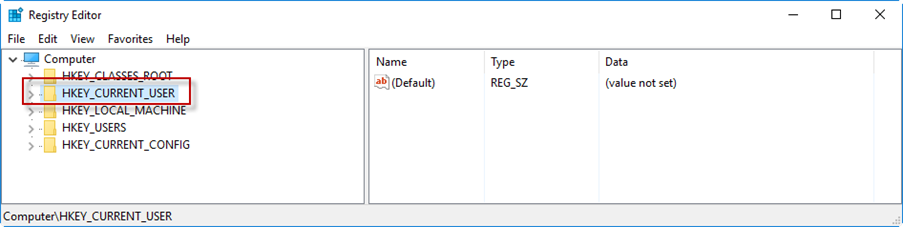
3. Select HKEY_CURRENT_USER
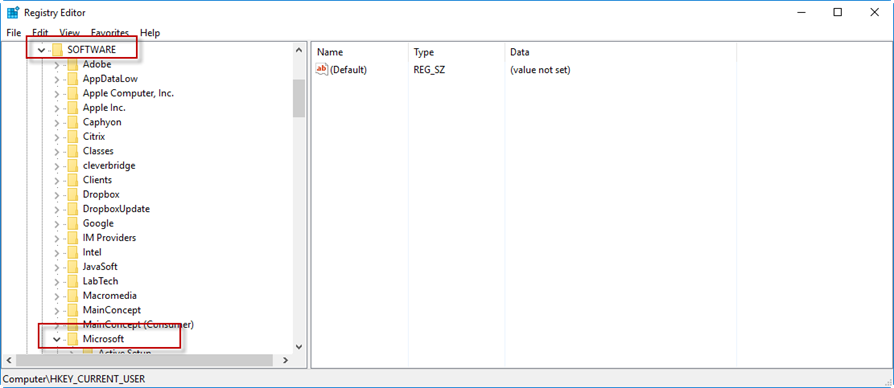
4. Then… SOFTWARE\Microsoft\Office
5. Then select the application that is not loading (e.g. in this Example we show Excel) and choose Excel\Addins\Create.ExcelAddin\LoadBehaviour
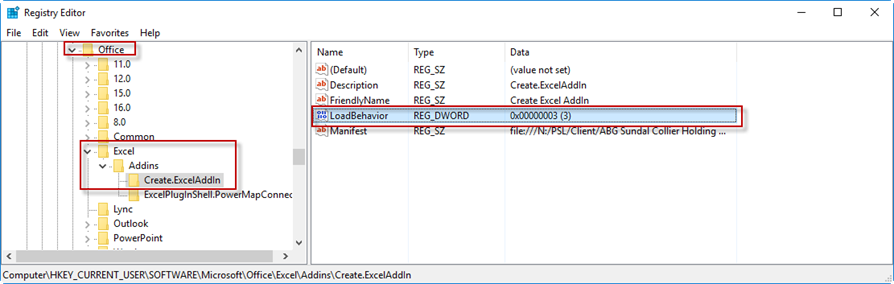
6. In the dialog that appears, the load behaviour has most likely been set to 0 which is preventing Create add-in from loading. You need to change this to 3 and ensure that Decimal is checked
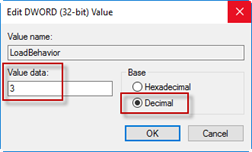
7. Closing and reopening the application, check that Create loads normally.
If after setting the load behaviour, Create ribbon still does not appear, please email our Support Helpdesk support@presentationsolutions.co.uk or call us for advanced troubleshooting.
One of the Create Add-ins is not visible
Sometimes you may encounter a scenario when (for example) the Create Word and PowerPoint add-in are displaying properly but Excel add-in is not in the Active Application Addin list and not showing in Excel and COM add-ins lists.
In this scenario we recommend uninstalling Create and reinstalling, which resolves this issue.
Was this article helpful?
That’s Great!
Thank you for your feedback
Sorry! We couldn't be helpful
Thank you for your feedback
Feedback sent
We appreciate your effort and will try to fix the article