This function calculates and inserts an average line or area on a chart.
Select the chart.
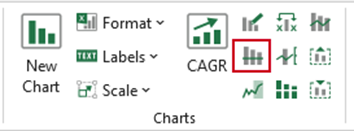
Select Average on the ribbon.
- Under Average type, select Line, Area or Custom Gantt chart (see Bar Gantt Charts)
- Under Value Format, select Actual value or Percentage of maximum and the value will be calculated.
- The Value field will contain the calculated value, but this can be overwritten.
- Under Select series, select the series from which the average is to be calculated.
- Select Add data label to display the average value label on the chart.
- Select Remove previous averages if there is already an average line or area displayed.
- From the chart theme dropdown select your current chart theme. Click OK.
An average line or area will be added to the selected chart, depending on your selection.
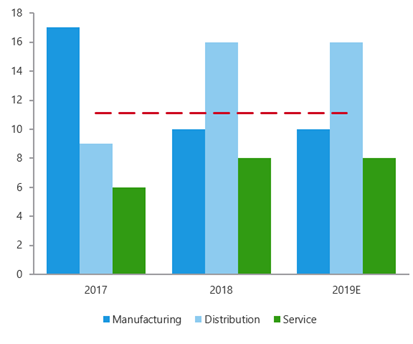
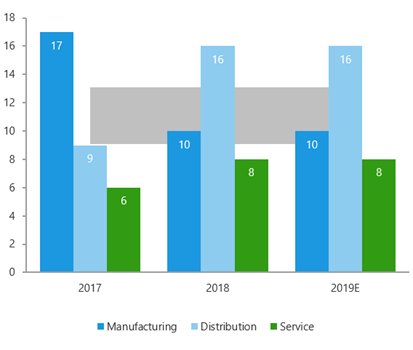
| Notes Do not reformat the chart after you have added an Average line or area as it will lose its formatting. Instead, delete the existing one and reinsert. |
Was this article helpful?
That’s Great!
Thank you for your feedback
Sorry! We couldn't be helpful
Thank you for your feedback
Feedback sent
We appreciate your effort and will try to fix the article