Adding Labels
This function adds chart labels as standard Excel data labels. They are linked to the chart data, but do not have to be part of the original source data and will therefore update accordingly if the data changes. They cannot be resized but individually they can be moved.
Select the chart and select Labels, Add Data Labels on the ribbon.
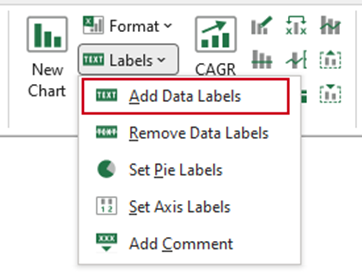
- Select the series to which the labels are to be applied from the Series dropdown menu.
- Click on the Label range button to collapse the dialog.
- A dialog will appear. Click into the worksheet and select the cells containing the category labels you wish to display.
- The selected range will populate the Label range field.
- Click OK.
Removing Labels
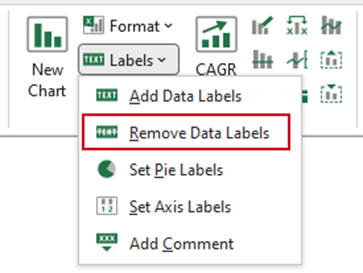
This function removes all native Excel data labels with one click, rather than having to select the labels for each data series. It also removes data labels that have been created via the Add function, from a selected chart.
Select the chart and select Labels, Remove Data Labels on the ribbon.
Pie Labels
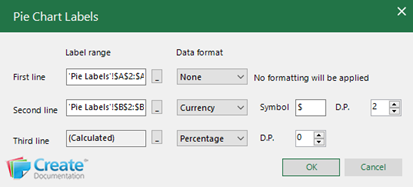
This function adds pie labels to a pie chart as unattached text boxes linked to your worksheet data. This is useful if you wish to customise the labels in any way (e.g. add a currency symbol), to fix text wrapping, or if the labels are too long - as they cannot be resized in native Excel. You can have up to three lines of data in the pie labels.
Select the pie chart. Delete the Excel generated pie labels – use the Remove Data Labels function for this.
Select Labels, Set Pie Labels on the ribbon.
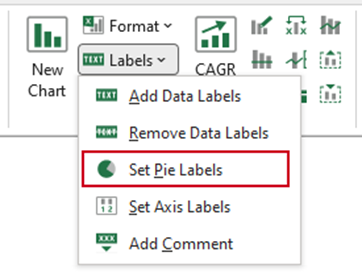
- Click on the Label range for each line field (the dialog will collapse).
- Select the data for each line of your data labels.
- Choose a Data format for the label from the dropdown list (optional).
- Click OK.
The new pie labels will be added to the chart.
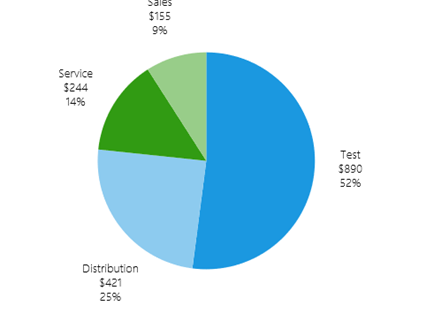
The labels are unattached text boxes linked to the data on your worksheet. You may need to move and resize them. They can also be formatted e.g. to change text alignment, size and colour.
To delete these labels, click on them and select Remove Data Labels from the Labels group.
| Notes If you are working in Excel 2007, the pie chart labels are not linked to the data and will have to be updated manually. |
Setting X-Axis Labels
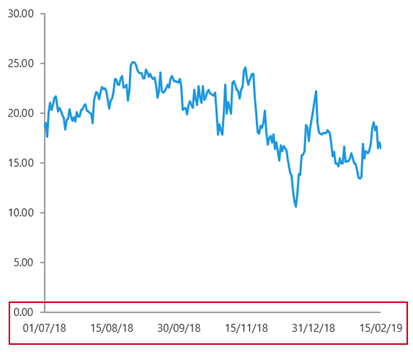
You can set a specific start and end date for category X-axis labels on an X-Y scatter line chart and set the number of axis labels. For example, if your chart data shows a year of daily plot points (e.g. 365 labels) it can be customised to display 12 category X-axis labels including the start and end dates.
Select the chart and select Labels, Set Axis Labels on the ribbon.
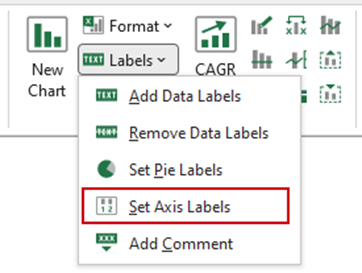
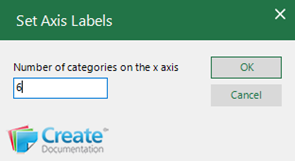
- Type in the number of X axis labels to be displayed.
- Click OK.
The required number of X-axis labels will be added to the chart.
Notes |
Was this article helpful?
That’s Great!
Thank you for your feedback
Sorry! We couldn't be helpful
Thank you for your feedback
Feedback sent
We appreciate your effort and will try to fix the article