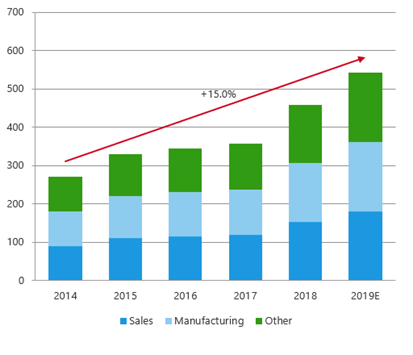
This function will calculate the CAGR of a single data series on a column chart or on multiple series on a stacked column chart and add a CAGR line and label. If the data changes, the CAGR line on the chart will update.
Select the column chart.
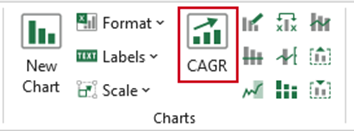
Select CAGR on the ribbon.
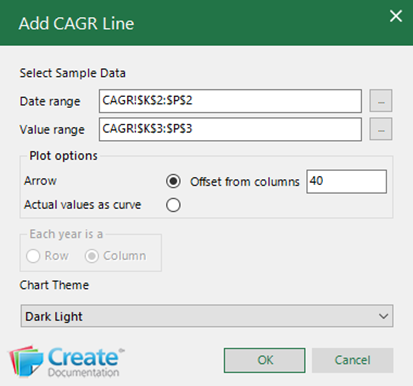
- If the displayed data ranges in the Date range and Value range fields are not correct, or if you wish the CAGR to be applied to a portion of the chart and not the whole chart, click on the button next to each field. This will collapse the dialog and take you to your worksheet where you can reselect the data.
- Select Arrow to add a straight, thicker arrowed line.
- Select Actual values as curve to add a slimmer curved non-arrowed line.
- Offset from columns is the required distance between the CAGR line and the top of the columns. Type over the default number if you wish to change this.
- Select Each year is a Row or Column depending on how the data is arranged on the worksheet (this is only enabled if the chart selected is a stacked column chart).
- From the chart theme dropdown select your current chart theme.
- Click OK.
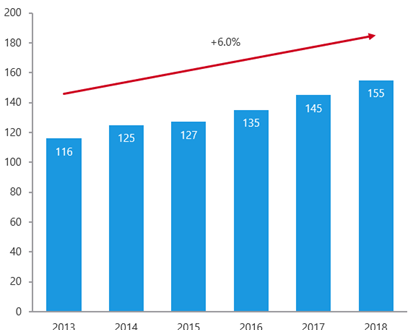
A CAGR line or arrow based on your selections will be added to the selected chart.
| Notes To calculate and add the CAGR to a chart, Create needs to add dummy data to the worksheet. This data is inserted 100 columns to the right of the bottom extent of any existing data on the worksheet, so that it doesn’t interfere with the existing data. However, because this additional data is on your worksheet you will need to make sure that you manually set your print area so that it is not included if you print. If you delete the CAGR line, this associated data remains. Do not reformat the chart after you have added the CAGR line as it will lose its formatting. Instead, delete the existing line and reinsert. |
Was this article helpful?
That’s Great!
Thank you for your feedback
Sorry! We couldn't be helpful
Thank you for your feedback
Feedback sent
We appreciate your effort and will try to fix the article