This function will generate a copy of an Excel workbook as a PDF or an Excel file (.xlsx), which can be shared for reviewing, whether internally or externally. When using this function, users will be presented with a series of options to include or exclude.
- Select Options, Prepare to Share from the Create ribbon.
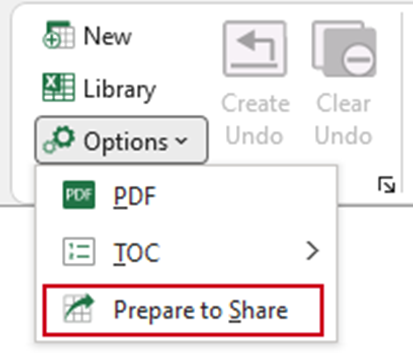
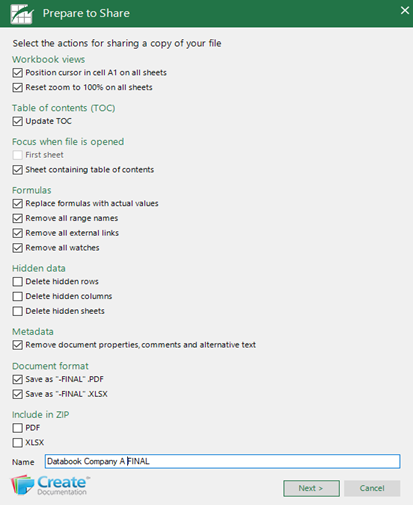
The Prepare to Share dialog opens.
Select OK, to produce a copy of the file based on the default selections (these selections will be stored for the next time you select this function) OR select new actions that will be performed before the file is saved.
Workbook views
- Position cursor in cell A1 on all sheets will put the cursor in cell A1 on every sheet in the workbook before saving.
- Reset zoom to 100% on all sheets will set the zoom level to 100% on every sheet.
Table of contents (TOC)
- Update TOC will update a Table of contents (TOC) that has been added to your workbook (if you used the Create function to insert it initially. See Article: Excel - Table of Contents (TOC).
Focus when file is opened
- First sheet: the xlsx file will open at the first sheet if this option is checked.
- Sheet containing table of contents: the xlsx file will open at the sheet containing the TOC if this option is checked.
Formulas
- Replace formulas with actual values check this option to replace formulas within their workbook with their actual values.
- Remove all range names: check this to remove all named ranges (created using native Excel) from the workbook.
- Remove all external links: check this to remove any links to other workbooks.
- Remove all watches: check this to remove any cells from the Excel Watch Window.
Hidden data
- Check any or all of these options to remove hidden rows, columns or sheets from the workbook before it’s saved.
Metadata
- Remove document properties, comments and alternative text: check this to remove any of these from the workbook before it’s saved.
Document format
- The copy of the workbook can be saved as an Excel file (.xlsx) or a PDF, or both. Check your preferred option.
Include in ZIP
- To create a .ZIP file containing either the .xlsx file or the PDF file, check one or both of these options.
Was this article helpful?
That’s Great!
Thank you for your feedback
Sorry! We couldn't be helpful
Thank you for your feedback
Feedback sent
We appreciate your effort and will try to fix the article