You can copy one cell’s content from Excel to PowerPoint or Word as linked text – useful if you need to include figures, that may change at a later date, in a paragraph of text. This linked text can be updated if it changes in the Excel source file and can be displayed as plain or hyperlinked text in Word or PowerPoint - managed in the Links dialog. In Word, the text contains a hyperlink but is not reformatted with the hyperlink style – it will retain its existing style.
In PowerPoint or Word, position your cursor where the Excel cell text is to be inserted - either in text or in a table cell.
In Excel, select the cell and from the Quick Send group, select Object to Word or Object to PPT.

Or select As text in the Tables task pane.
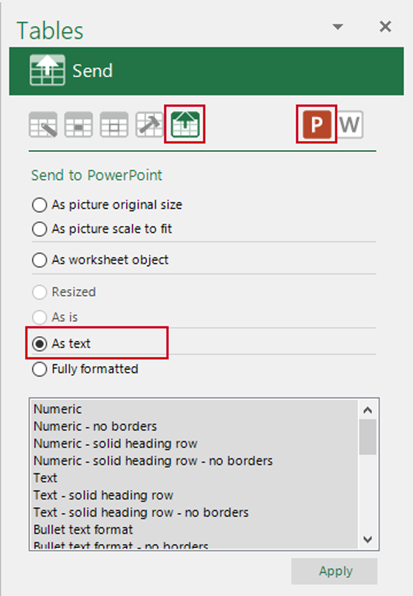
The text will be inserted as a hyperlink in PowerPoint or Word. Linked text becomes a linked object and can be updated using Create. To view hyperlinks in your Word document, select ALT + F9 (function key).
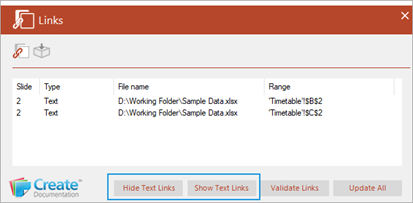
The hyperlinks can be temporarily hidden (and shown again) by selecting Hide Text Links/Show Text Links in the Links dialog in Word or PowerPoint.
Was this article helpful?
That’s Great!
Thank you for your feedback
Sorry! We couldn't be helpful
Thank you for your feedback
Feedback sent
We appreciate your effort and will try to fix the article