Use Create to export table data and charts from Excel to PowerPoint or Word. Charts and tables can then be updated in PowerPoint and Word using Create because they are linked to the original data.
There are several options available when copying charts and tables to PowerPoint or Word.
Make sure you copy the chart or table into a placeholder in Word or PowerPoint to ensure correct sizing and positioning on the page/slide.
______
Quick Send
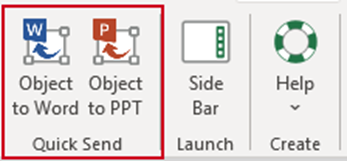
This function in Excel will detect whether you have a chart, table or cell selected in Excel, and send it to PowerPoint or Word, using a pre-defined method. Tables will be copied across as pictures and scaled to fit the selected placeholder in PowerPoint or Word. Charts will be resized in Excel to fit the selected PowerPoint or Word placeholder and then copied as charts (not pictures). The contents of a cell will be copied across as linked text.
Make sure you have a placeholder selected in PowerPoint or Word.
In Excel, select the table data or the chart and from the Quick Send group, select Object to Word or Object to PPT.
The chart or table will be pasted into Word or PowerPoint with a link to the original in Excel.
Setting your Quick Send Defaults
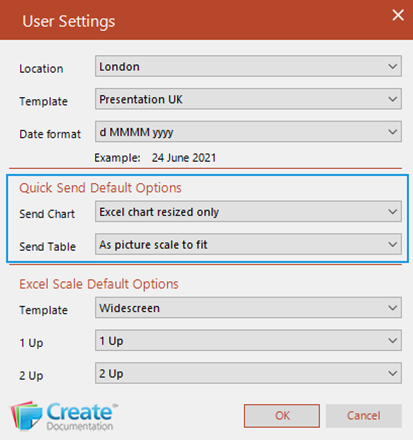
Users can set their preferred method of sending tables and charts to PowerPoint and Word via the Quick Send buttons from the User Settings dialog accessed from the Help dropdown in Word or PowerPoint.
To set your Quick Send defaults:
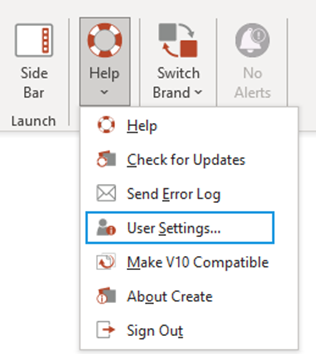
- From the Create ribbon in Word and PowerPoint, select Help.
- From the dropdown menu select User Settings.
- From the User Settings dialog, select your preferred method from the Send Chart and Send Table dropdown under Quick Send Default Options.
For more details on the different methods for copying see:
Setting your Excel Scale Defaults
Users can set their defaults for the Scale to Fit options in Excel from the User Settings dialog accessed from the Help dropdown in Word or PowerPoint.
To set your Scale to Fit defaults:
- From the Create ribbon in Word and PowerPoint, select Help.
- From the dropdown menu select User Settings.
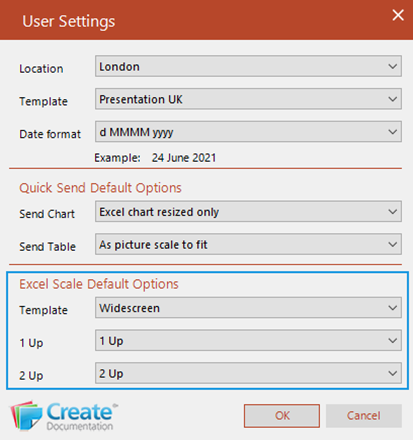
Set your scaling defaults under Excel Scale Default Options:
- Template: select from the dropdown the template on which the default scale options should be based
- 1 Up will populate with all the 1 Up placeholder options for the template selected above. Select your preferred option on which the default scale for 1 Up should be based.
- 2 Up will populate with all the 2 Up placeholder options for the template selected above. Select your preferred option on which the default scale for 2 Up should be based.
Was this article helpful?
That’s Great!
Thank you for your feedback
Sorry! We couldn't be helpful
Thank you for your feedback
Feedback sent
We appreciate your effort and will try to fix the article