This option takes a copy of the PowerPoint presentation or Word document and all the linked Excel data files. It puts the files in a custom zipped file which you can only open, edit and update with Create. This can then be sent to a colleague or re-filed in the user’s own system. The recipient (or user) can then unpackage the files and the links to the source data will be updated automatically to the new file location.
Make sure all the files are saved and the Excel files are closed.
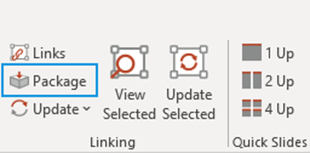
Select Package from the ribbon or from the Links dialog.
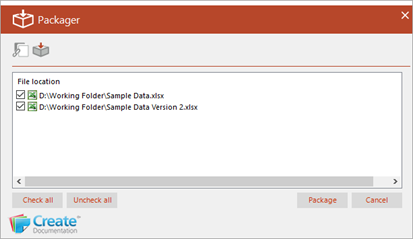
The Packager dialog will open with a list of all the associated Excel files.
- Check the files you wish to package with your document. Select Package.
- Name and save the packaged (ending psl-pkg) file to the required location.
Unpackaging Linked Files
Unpack the PowerPoint or Word and associated Excel files to a new location by double-clicking on the psl-pkg file.
The Unpackage dialog will open.
Select the folder in which you wish to save the PowerPoint/Word file and the linked files. Select Unpack.
The PowerPoint/Word file and selected Excel files will be saved to the new location and any linked objects relinked to the Excel file in the new location.
Was this article helpful?
That’s Great!
Thank you for your feedback
Sorry! We couldn't be helpful
Thank you for your feedback
Feedback sent
We appreciate your effort and will try to fix the article