Once table data, charts and text have been copied from Excel they become linked objects in your PowerPoint presentation or Word document. When the data changes in Excel use the Update function to update the data in PowerPoint or Word. Linked objects can be updated individually or by object type (i.e. charts or tables). You can also select Update, All which will update the agendas/TOCs, cross-references and section trackers simultaneously. Always save the Excel file before updating to ensure that all recent changes are reflected.
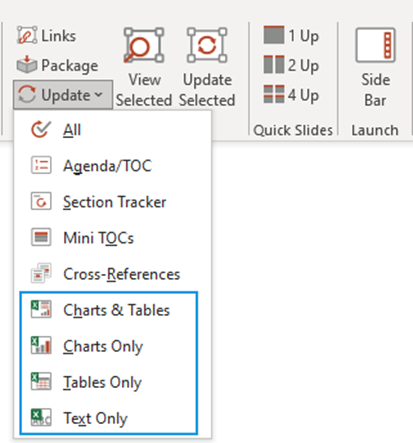
Update linked objects in PowerPoint by selecting an option from the Update dropdown on the Create ribbon.
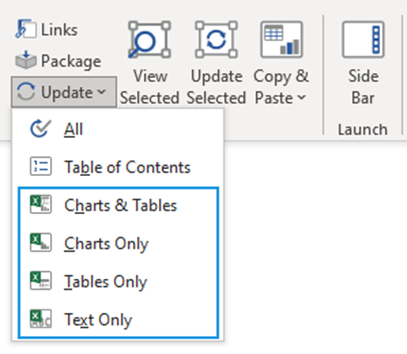
Update linked objects in Word by selecting an option from the Update dropdown on the Create ribbon.
If any links cannot be found the following message is displayed (screenshot example from Word):

Use the Change Source File option in the Links dialog to correct any missing links. See Changing the Excel Source File.
Updating a Single Object
You can update individual objects - this will save time especially if you have numerous linked objects in your presentation.
Select the object to be updated and select Update Selected.

OR
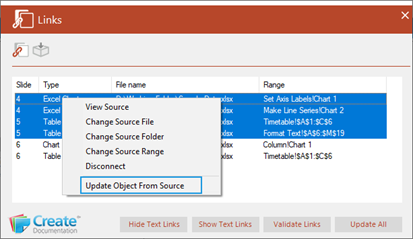
Right-click on the object (or select multiple objects by holding the SHIFT key down) in the Links dialog and select Update Object From Source.
Was this article helpful?
That’s Great!
Thank you for your feedback
Sorry! We couldn't be helpful
Thank you for your feedback
Feedback sent
We appreciate your effort and will try to fix the article