Use Create to export charts from Excel to PowerPoint or Word. These charts can then be updated in PowerPoint and Word using Create because they are linked to the original data.
There are several options available when copying charts to PowerPoint or Word.
Make sure you copy the chart into a placeholder in Word or PowerPoint to ensure correct sizing and positioning on the page/slide.
______
In addition to using Quick Send to send charts from Excel, there are other methods available on the Chart task pane.
Copying Charts to PowerPoint
Select a placeholder in PowerPoint first, to ensure correct sizing and positioning on the slide. In Excel, select the chart.
Select Send Chart on the side bar.

The Chart task pane will open at the Send panel.
Choose PowerPoint and then select your preferred method of copying
- Excel charts – this method does not embed the Excel file into the object in PowerPoint, but it does link the chart to the Excel source data, allowing you to update the chart in PowerPoint if the data changes in Excel. Once in PowerPoint you can resize the Excel chart, but you will need to return to the source in Excel to edit the data.
- Pictures – this method does not allow you to edit the chart in PowerPoint, but it does link the chart to the Excel source data, allowing you to update the chart in PowerPoint if the data changes in Excel.
- OLE charts – sends the chart to PowerPoint as an OLE chart, without resizing or formatting. OLE charts are linked to the original Excel source data and will update automatically in PowerPoint without the need to use the Update function or to save the Excel file.
- Recreated as embedded charts – copies the data and format of the chart, recreates and resizes the chart into a selected PowerPoint placeholder, as an embedded object. Charts can then be edited in PowerPoint by right-mouse-clicking and choosing Edit Data. When selecting this option, the choice of chart themes will become available.
Additionally - As is – does not make any changes to either the formatting or the size of the Excel chart before copying it as an Excel chart into PowerPoint.
- Resized only – resizes the chart in Excel to fit a PowerPoint placeholder.
- Scale proportionately – copies the chart and scales it proportionately for a better fit to the selected PowerPoint placeholder.
- Click Apply.
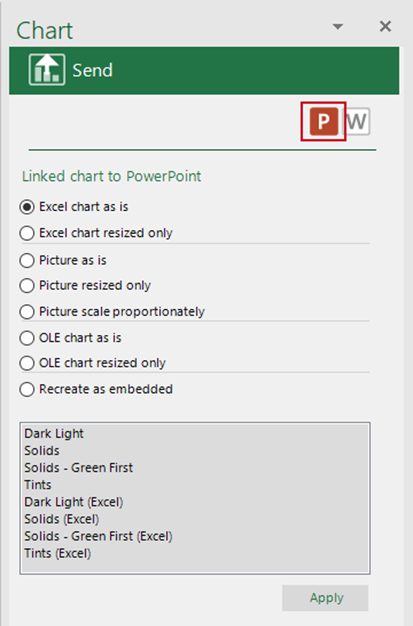
The chart will be copied to the placeholder in PowerPoint using the method selected.
Copying Charts to Word
Place your cursor in a placeholder in Word, to ensure correct sizing and positioning on the page. In Excel, select the chart.
Select Send Chart on the side bar.
The Chart task pane will open at the Send panel.
Choose Word and then select your preferred method of copying
- Excel charts – this method does not embed the Excel file into the object in Word, but it does link the chart to the Excel source data, allowing you to update the chart in Word if the data changes in Excel. Once in Word you can resize the Excel chart, but you will need to return to the source in Excel to edit the data.
- Pictures – this method does not allow you to edit the chart in Word, but it does link the chart to the Excel source data, allowing you to update the chart in Word if the data changes in Excel.
- OLE charts – sends the chart to Word as an OLE chart, without resizing or formatting. OLE charts are linked to the original Excel source data and will update automatically in Word without the need to use the Update function or to save the Excel file.
Additionally - As is – does not make any changes to either the formatting or the size of the Excel chart before copying it as an Excel chart into PowerPoint.
- Resized only – resizes the chart in Excel to fit a PowerPoint placeholder.
- Scale proportionately – copies the chart and scales it proportionately for a better fit to the selected PowerPoint placeholder.
- Click Apply.
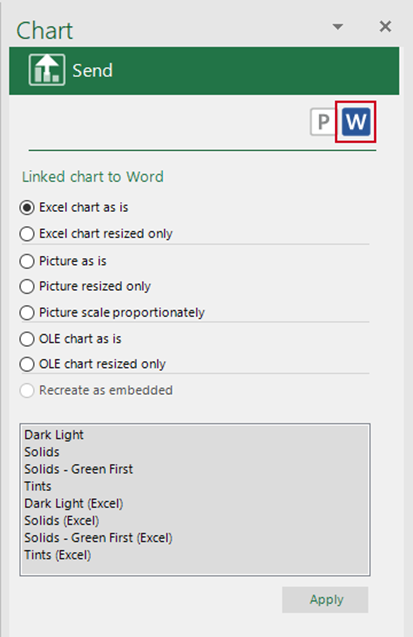
The chart will be copied to the placeholder in PowerPoint using the method selected.
Was this article helpful?
That’s Great!
Thank you for your feedback
Sorry! We couldn't be helpful
Thank you for your feedback
Feedback sent
We appreciate your effort and will try to fix the article