Before using Create for the first time, set your default User Settings. Once you have selected your preferred PowerPoint template and defaults, all new PowerPoint presentations created using Create will be assigned these settings. You can also set your preferred methods of copying charts and tables from Excel. See Article: Setting your Quick Send Defaults.
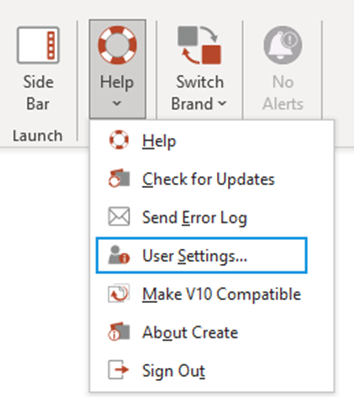
From the Help dropdown on the Create ribbon select User Settings.
This is a customisable feature and the fields you see in the dialog may be different from those shown.
To set your Quick Send default options, see Article: Setting your Quick Send Defaults.
Select your preferred defaults and click OK.
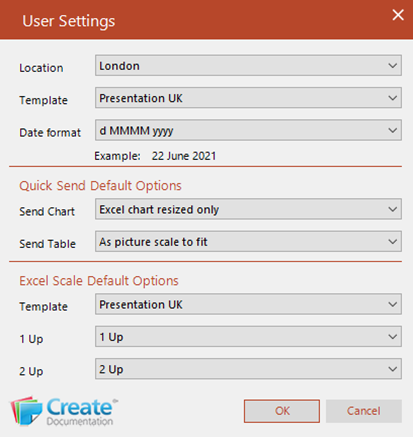
| Notes Please note that these are example fields, and that your product may not have some of these and may include others not listed here. Updating your User Settings will only take effect when you start a new document. To effect the change on an existing document, make the changes in User Settings, click on Doc Setup, click OK and the presentation will update to contain the new settings. |
Was this article helpful?
That’s Great!
Thank you for your feedback
Sorry! We couldn't be helpful
Thank you for your feedback
Feedback sent
We appreciate your effort and will try to fix the article