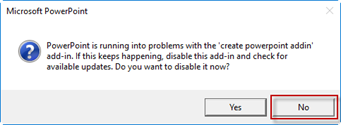
It is quite normal for Microsoft Office to occasionally make an add-in in-active or disabled. If Office displays a message suggesting that there is an issue with the Create add-in and asks whether you wish to disable it, always choose No. The Create add-in will not have caused any problems and you will be able to carry on working normally. If you click Yes, Create will not load and the Create tab will not display on the ribbon.
How to re-enable the Create Add-in
The add-in can be re-enabled using one or both of the following methods. PowerPoint has been used as an example, but the same steps are used for Excel and Word.
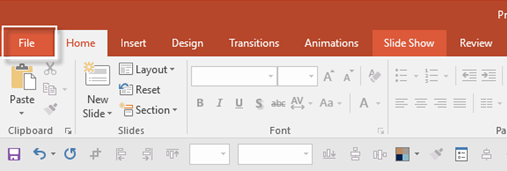
1. Choose the File tab in top left-hand corner of PowerPoint (or Excel).
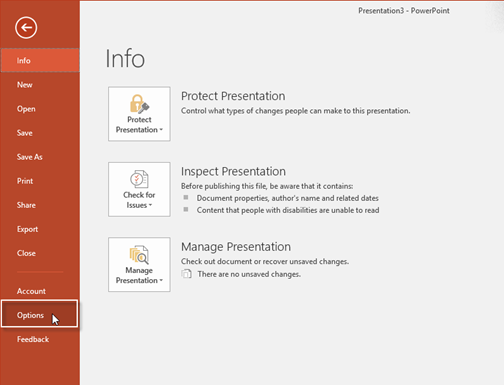
2. Select the Options button.
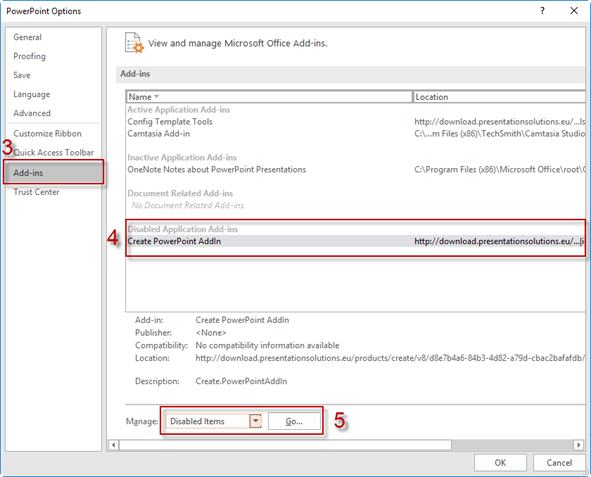
3. Select Add-Ins.
4. If Create has been Disabled, you’ll see it appears in the Disabled Application Add-ins list.
5. Select Manage > Disabled Items. Then select Go….
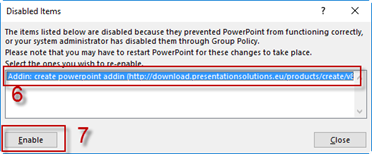
6. Select the Create PowerPoint Add-in within the Disabled Items dialog.
7. Choose Enable and then close the dialog.
8. Close and reopen PowerPoint.
The Create tab should be loaded back on the ribbon.
If the Create tab does not reappear, reopen the File\PowerPoint\Options dialog.
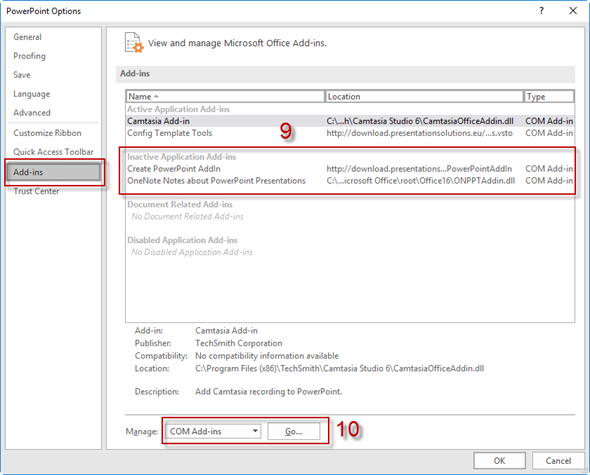
9. Create may now display in the Inactive Application Add-ins list.
10. Select Manage > Com Add-ins. Then select Go….
12. In the dialog, select Create by checking the box.
13. Choose OK.
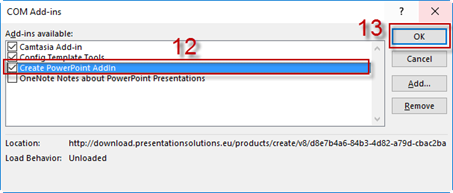
The Create tab should be loaded back on the ribbon. If it does not, close and reopen PowerPoint (or Excel/Word depending on which one was disabled).
If the Add-in still doesn’t appear see article: Create Add-in Keeps Disabling or Disappearing to check the Load Behaviour of Add-in in the Registry.
Was this article helpful?
That’s Great!
Thank you for your feedback
Sorry! We couldn't be helpful
Thank you for your feedback
Feedback sent
We appreciate your effort and will try to fix the article