The Styles group gives access to the styles that make up each template. Using the buttons will enable you to format your document quickly and easily in the corporate style.
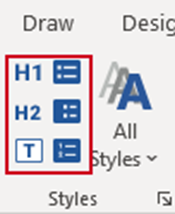
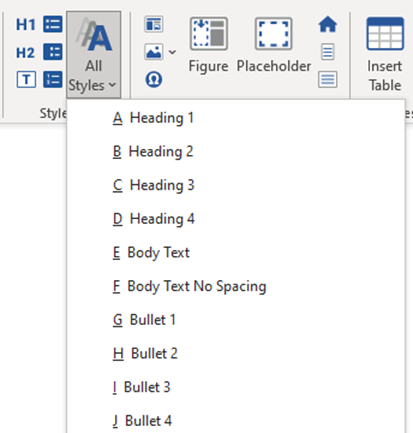
All the text styles for the document are available in the Styles group on the Create ribbon or the Text Formats task pane. These will help you format your document efficiently. The six main style buttons will be available in all documents. However, the All Styles list will change according to the template you are using.
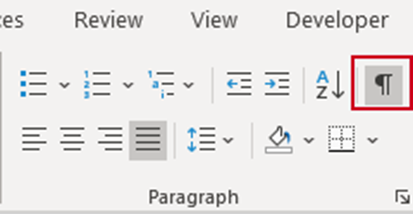
To make text styling easier and to view section breaks, you can display paragraph marks. To enable this, select Show/Hide Paragraphs Marks on the native Word Home ribbon.
______
To format your document, click in the paragraph of text and select the required style from the Styles group.
The six main styles are available here.
Select All Styles to access a dropdown menu which lists all the styles that make up the document. This will change depending on which template you are using.
If you are using the list of All Styles regularly, select the task pane launcher from the Styles group or the Text button on the side bar.
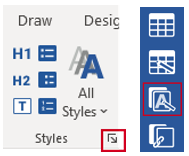
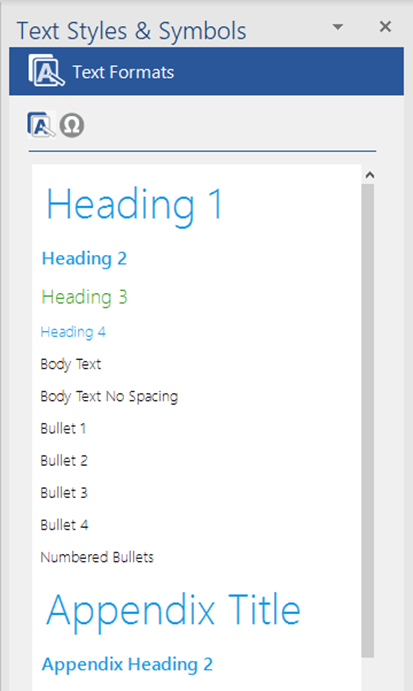
The Text Styles & Symbols task pane will open at the Text Formats panel showing all available Word style for the current document.
Select a paragraph or multiple paragraphs and then the required style.
Notes |
Was this article helpful?
That’s Great!
Thank you for your feedback
Sorry! We couldn't be helpful
Thank you for your feedback
Feedback sent
We appreciate your effort and will try to fix the article