Use the Create table tools to insert and format tables in your organisation’s branding, rather than native Word to ensure you are using the correct formatting.
Formatting Tables
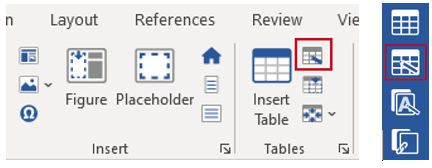
Once a table is inserted you can apply a different table format or apply other specific formatting options. Select the table and select Format Table on the ribbon or Format on the side bar.
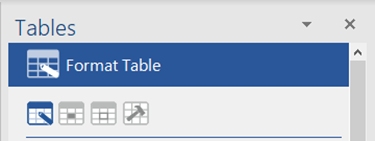
The Tables task pane opens at the Format Table panel.
You can select an icon to view Format Cells, Borders or Table Tools.
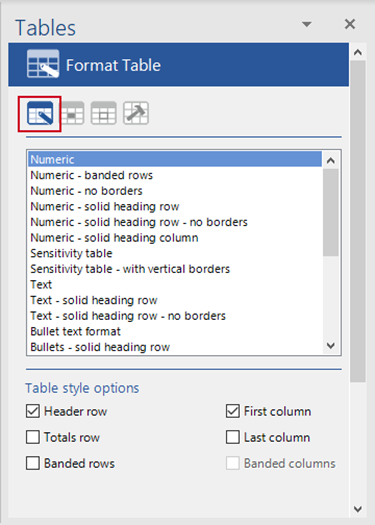
Select a base Table Format from the list to apply to the selected table.
Check any of the Table Style Options to apply special formatting to your table. To remove this formatting, uncheck the option.
Formatting Cells
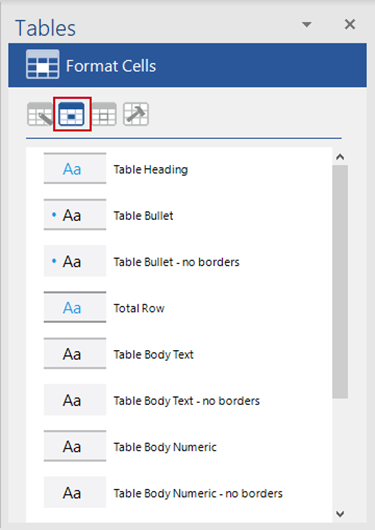
Once you have applied a whole table format to a selection of cells, you can apply any additional cell formatting that is available e.g. totals or subtotals.
From the Format Cells panel click an option in the list to apply a cell format to the selected cells.
Note that applying a cell format will not change the font size of a cell.
Formatting Borders
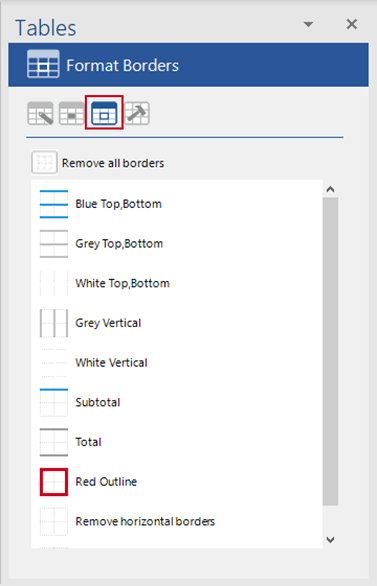
Borders will be applied accordingly when you apply a whole table format, but to change these or to apply additional borders to the table use the Format Borders function rather than native Word. The line weights and colours will be in line with your organisation’s branding.
From the Format Borders panel click an option in the list to apply a border format to the selected cells or use the Remove all borders button to clear all borders.
Was this article helpful?
That’s Great!
Thank you for your feedback
Sorry! We couldn't be helpful
Thank you for your feedback
Feedback sent
We appreciate your effort and will try to fix the article