The Styles group gives access to the styles that make up each template. Using the buttons will enable you to format your document quickly and easily in the corporate style.
All the text styles for the document are available in the Styles group on the Create ribbon or the Text Formats task pane. These will help you format your document efficiently. The six main style buttons will be available in all documents. However, the All Styles list will change according to the template you are using.
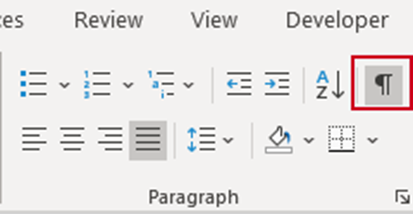
To make text styling easier and to view section breaks, you can display paragraph marks. To enable this, select Show/Hide Paragraphs Marks on the native Word Home ribbon.
______
If your selected document type contains sections, the first section is usually present when you start a new document. Depending on the document design there are different ways that additional sections should be created. If the design includes section cover pages, the sections will be stored in the Library (see Article: Inserting Library Content). If the design does not include section cover pages, the section title will be created by applying either the style Heading 1 or Section Title. Section Titles and Headings levels 1-4 can be included in your Table of Contents (see Article: Editing the TOC).
Inserting a New Section
If your selected document type contains sections with no section cover pages, use the Heading 1 style to insert a new section.
- Click on a blank paragraph mark.
- Select H1 (Heading 1). A new page will be inserted and the correct style will be applied.
Notes |
Inserting a New Appendix
If your selected document type contains sections and appendices with no cover pages, use the Appendix Title or Appendix Heading 1 style to insert a new appendix.
- Click on a blank paragraph mark.
- Select Appendix Title or Appendix Heading 1. A new page will be inserted, and the correct style will be applied.
Notes |
Was this article helpful?
That’s Great!
Thank you for your feedback
Sorry! We couldn't be helpful
Thank you for your feedback
Feedback sent
We appreciate your effort and will try to fix the article