The Insert group contains a number of preformatted objects or different page setups that you can choose to insert into your document.
______
The standard page orientation for most Word documents is already portrait. In which case, you should use styles or page breaks to insert a new page. However, if your document is landscape and certain information would be better displayed in a portrait format, a preformatted portrait page can be inserted.
Place your cursor where you wish the new portrait page to appear.
With your cursor on a blank paragraph marker, select Portrait on the Create ribbon.
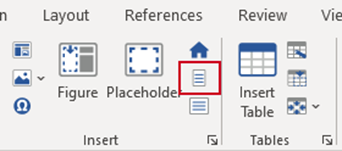
A section break or a page break will be inserted (depending on the orientation of the previous page), followed by the new portrait page.
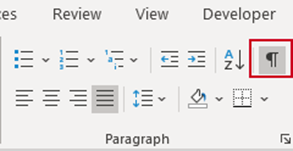
| Notes In order to make text styling easier and to view section breaks, you can choose to display paragraph marks. To enable this, select Show/Hide Paragraphs Marks on the native Word Home tab. |
Was this article helpful?
That’s Great!
Thank you for your feedback
Sorry! We couldn't be helpful
Thank you for your feedback
Feedback sent
We appreciate your effort and will try to fix the article