The Insert group contains a number of preformatted objects or different page setups that you can choose to insert into your document.
______
This function inserts an image from your clipboard or from a file. All pictures should be inserted into placeholders to ensure consistent sizing and positioning on the page and to enable listing in the TOC if required.
- Select Picture on the Create ribbon.
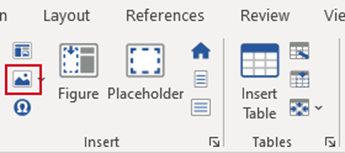
Inserting a Picture from a File
Place your cursor inside a placeholder.
- Select Picture, From File on the Create ribbon.
- Browse to the location of the file you wish to insert.
- Select Open.
The picture will be inserted into the placeholder sized to fit proportionately.
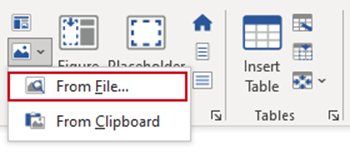
| Notes This function will scale the height and width of the picture proportionally to the original image and will be positioned in the top left-hand corner of the placeholder – it will not necessarily fill the placeholder. If you wish to rescale the picture select the picture, click on a resize handle and resize accordingly. |
Inserting a Picture from the Clipboard
Copy (CTRL + C) the picture from its original location and place your cursor inside a placeholder.
- Select Picture, From Clipboard on the Create ribbon.
- Browse to the location of the file you wish to insert.
- Select Open.
The picture will be inserted into the placeholder sized to fit proportionately.
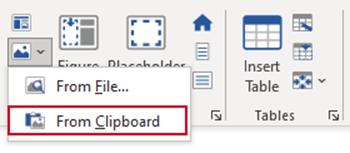
| Notes This function will scale the height and width of the picture proportionally to the original image and will be positioned in the top left-hand corner of the exhibit – it will not necessarily fill the placeholder. If you wish to rescale the picture select the picture, click on a resize handle and resize accordingly. |
Inserting PowerPoint Shapes and Diagrams
PowerPoint shapes and diagrams should be created, formatted and sized in PowerPoint and then copied to placeholders in Word. The Picture, From Clipboard function pastes the picture and scales it to fit the placeholder. The picture is not linked back to the source file so to edit the shape, go back to PowerPoint and copy again.
Was this article helpful?
That’s Great!
Thank you for your feedback
Sorry! We couldn't be helpful
Thank you for your feedback
Feedback sent
We appreciate your effort and will try to fix the article