There are three types of Tables of Exhibits available: the Table of Figures lists all the numbered figure exhibits in the document along with their title; the Table of Tables lists all the numbered table exhibits in the document along with their title; and the Table of Equations lists all the numbered equation exhibits in the document along with their title. Each Table of Exhibits will appear on a separate page. One of each is included when a new document is started, if this is the document’s default style.
Inserting a Tables of Figures
This will list any exhibits/figures that have been inserted as figures from the Figure task pane. Delete any existing Table of Figures and page heading (the function will insert a new page heading). Place your cursor on a blank paragraph marker, where you want the new Table of Figures to appear (usually after the Table of Appendices).
Select Insert, Table of Exhibits, Figures on the Create ribbon.
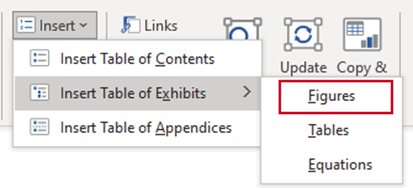
A new Table of Figures page will be inserted in your document and any figure exhibits in the document will be listed, once you have updated the TOCs.
Inserting a Table of Tables
This will list any exhibits/figures that have been inserted as tables from the Figure task pane. Delete any existing Table of Tables and page heading (the function will insert a new page heading). Place your cursor on a blank paragraph marker, where you want the new Table of Tables to appear (usually after the Table of Appendices).
Select Insert, Table of Exhibits, Tables on the Create ribbon.
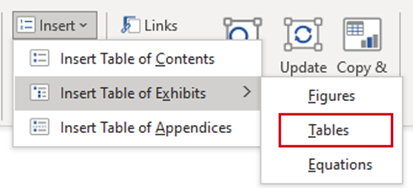
A new Table of Tables page will be inserted in your document and any table exhibits in the document will be listed, once you have updated the TOCs.
Inserting a Table of Equations
This will list any exhibits/figures that have been inserted as equations from the Figure task pane. Delete any existing Table of Equations and page heading (the function will insert a new page heading). Place your cursor on a blank paragraph marker, where you want the new Table of Equations to appear (usually after the Table of Appendices).
Select Insert Table of Exhibits, Equations on the Create ribbon.
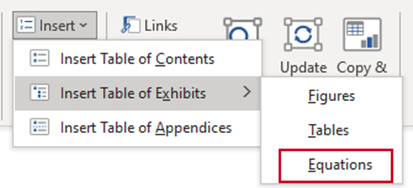
A new Table of Equations page will be inserted in your document and any equations exhibits in the document will be listed, once you have updated the TOCs.
Updating a Table of Exhibits
After inserting or deleting sections or appendices or making changes to headings that are included in the TOCs, select Update.
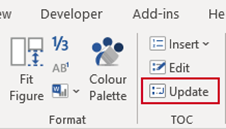
| Notes Do not type directly onto the Tables of Exhibits. If there are errors in the TOE, go to the corresponding exhibit heading in the document and make the alterations, select Update. |
Was this article helpful?
That’s Great!
Thank you for your feedback
Sorry! We couldn't be helpful
Thank you for your feedback
Feedback sent
We appreciate your effort and will try to fix the article