The Modelling group contains functions to assist with spreadsheet modelling including SharpTrace, Select Sheets and AutoColour.
AutoColour
This feature allows users to apply customised colours to fonts and cell fills in an Excel workbook, according to the content of the cells e.g. formulas or references to cells in the current or a different workbook.
Basic AutoColour settings will be included with your customisation. However, you can also create your own settings and either share them with all users (if you are an author) or export them and share with colleagues who can import them.
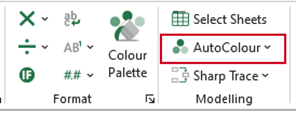
Select AutoColour on the ribbon.
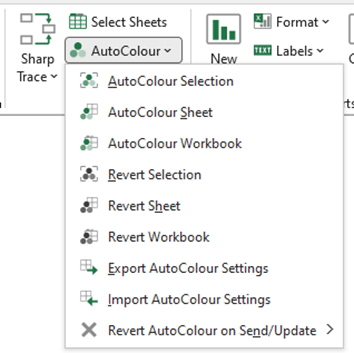
Select from the options on the dropdown:
- AutoColour Selection will apply the colours to the selected range.
- AutoColour Sheet will apply the colours to the current worksheet.
- AutoColour Workbook will apply the colours to the current workbook.
- Revert Selection will check for cells within the selection that have the AutoColour colours applied and apply the standard settings that are set in the AutoColour settings.
- Revert Sheet will check for cells within the current worksheet that have the AutoColour colours applied and apply the standard settings that are set in the AutoColour settings.
- Revert Workbook will check for cells within the current workbook that have the AutoColour colours applied and apply the standard settings that are set in the AutoColour settings.
- Export AutoColour Settings will export an Excel workbook to a chosen location which is populated with cells formatted with the current AutoColour settings. You can format the cells to change the settings, save the workbook and import.
- Import AutoColour Settings allows users to import an Excel workbook containing AutoColour settings.
- Revert AutoColour on Send/Update if checked, will always automatically revert the formatting of any range of cells to its standard formatting (as set in AutoColour) if that range of cells is sent to Word or PowerPoint. The initial setting of this option is unchecked which means any range of cells that is sent to Word or PowerPoint will not revert.
| Note After applying AutoColour, you can use Create Undo, immediately afterwards to revert back to the original formatting. However, after this, you will need to use Revert which apply the standard settings that are set in the AutoColour settings as Create will not be able to apply original formatting. |
Customising your own AutoColour settings
A set of basic AutoColour settings will be included with your customisation. However, you can also create your own settings and either share them with all users (if you are an author) or export them and share with colleagues who can import them.
To edit the current AutoColour settings:
Select Export AutoColour Settings from the AutoColour dropdown
- Browse to a file location where you wish to save the Excel Create AutoColour Import.xlsx workbook.
- Save this locally if you think you may need to continue with your own personal AutoColour settings rather than those built into Create.
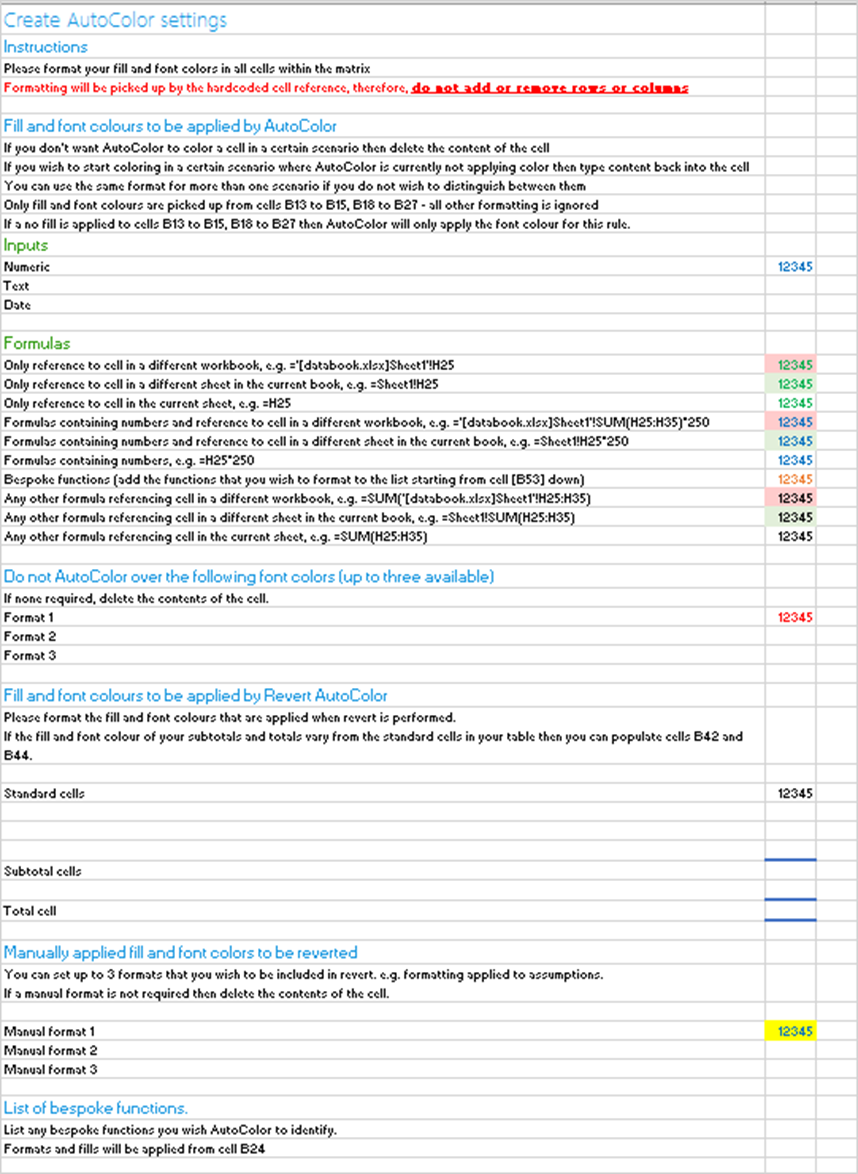
- The workbook will open and the current settings will be displayed.
- Format the fill and font colours according to the instructions.
- When you have finished, save the file and go to Import AutoColour Settings to import the workbook.
If you have saved your own personal settings you will need to import these after each Create update or if an author in your organisation uploads a new version.
Was this article helpful?
That’s Great!
Thank you for your feedback
Sorry! We couldn't be helpful
Thank you for your feedback
Feedback sent
We appreciate your effort and will try to fix the article