This pane allows authors to upload new workbooks and make them available to groups of users.
Go to the workbook you wish to upload. Make sure the workbook is saved.
Select Author on the side bar.
The Author task pane will open at the Upload Assets panel.
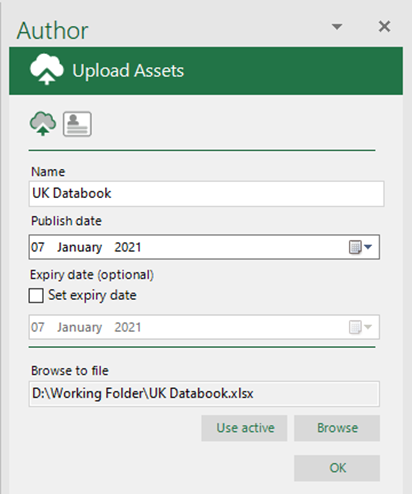
Complete the details of the new layout:
- Name: The name that you enter will appear underneath the layout thumbnail in the Workbook task pane once the layout is uploaded.
- Publish date: Defaults to the current day, month and year. To choose a future date, click on the calendar button and select the date. The recorded publish date and time will be in the same time zone as that of the author. Users will not be able to see any assets that have a future publish date until that date. Other authors will be able to see it before the publish date.
- Expiry date: This field is optional. If you want a layout to be available for a limited period only, check Set expiry date, click on the calendar button and select the date. The recorded expiry date will be in the same time zone as that of the author.
- Use active: Uploads the file currently open in Excel.
- Browse: Opens the browse dialog to open and upload from another location.
Click OK.
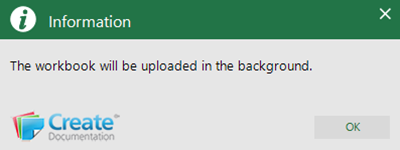
A message confirming that the workbook will be uploaded appears.
Click OK.
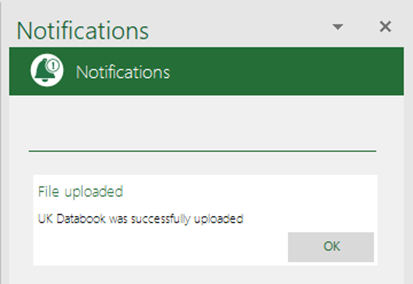
Select the Notifications button on the ribbon, once it’s enabled, to view a list of the updates
Click OK to clear the notifications, or you can just close the dialog.
Users will receive their own notifications informing them of any updates to updateable assets. See Notifications.
Related Topics
Was this article helpful?
That’s Great!
Thank you for your feedback
Sorry! We couldn't be helpful
Thank you for your feedback
Feedback sent
We appreciate your effort and will try to fix the article