The Modelling group contains functions to assist with spreadsheet modelling including SharpTrace, Select Sheets and AutoColour.
SharpTrace
SharpTrace in Create allows you to navigate through any precedents or dependents of your active cell. Precedents are cells that the current cell links from, dependents are cells that rely on and use the contents of the current cell. Selecting either of these functions will open up the SharpTrace dialog which will display the cell precedents or dependents that are linked to the current cell. From the dialog you can select any of the cell precedents or dependents to go that cell. If the cell is in another workbook, Create will attempt to open that workbook. If the workbook cannot be found, Create will let you know.
SharpTrace Precedents
To trace a cell’s precedents, select the cell containing the formula.
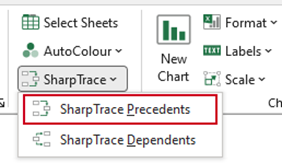
Select SharpTrace, SharpTrace Precedents on the Create ribbon.
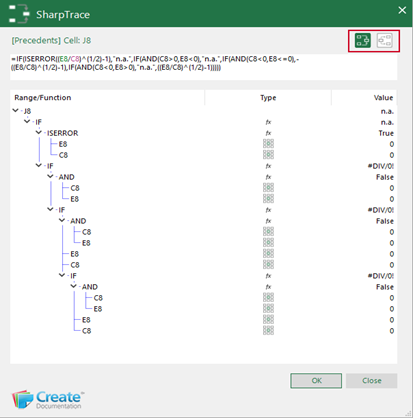
In the SharpTrace dialog, you can switch between Precedents and Dependents using the icons
- The formula text box will show details of the currently selected cell.
- The Range/Function column will show the selected cell as the root item.
- Click on the arrows to expand the tree view to show the precedents items of the cell and to display their references, type, formulas and values.
- Click OK.
SharpTrace Dependents
To trace a cell’s dependents, select the cell containing the value.
Select SharpTrace, SharpTrace Dependents on the Create ribbon.
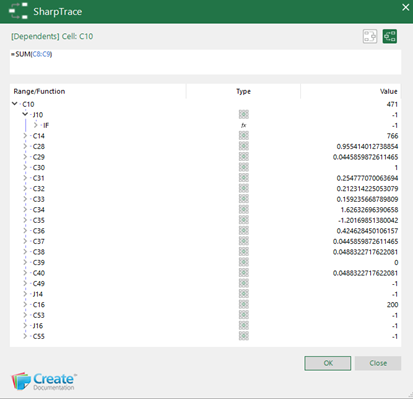
In the SharpTrace dialog, you can switch between Precedents and Dependents using the icons
- The formula text box will show details of the currently selected cell.
- The Range/Function column will show the selected cell as the root item.
- Click on the arrows to expand the tree view to show the dependents items of the cell and to display their references, type, formulas and values.
- Click OK.
Notes Only one SharpTrace dialog can be displayed at a time regardless of the number of excel workbooks open. To trace the precedents/dependents of a different cell you will need to close the dialog and reopen. This tool is not only useful for analysing where circular references are created, but also for analysing symmetry in your formulas and making sure that adjacent cells that are supposed to be calculating the same piece of data are using the same references and formulas. |
Was this article helpful?
That’s Great!
Thank you for your feedback
Sorry! We couldn't be helpful
Thank you for your feedback
Feedback sent
We appreciate your effort and will try to fix the article