Slide Numbering
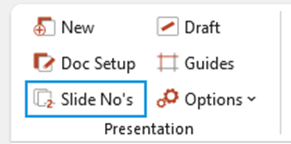
This function displays or hides the slide numbers on each slide of the presentation – it can also be used to “refresh” the slide numbering if there are any numbering issues after e.g. copying slides in from another presentation.
Select Slide No’s on the Create ribbon.
Displaying the Draft Stamp
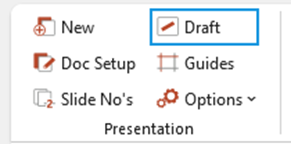
This function displays or hides the word DRAFT (or equivalent) and any associated draft text e.g. on the Title Slide. The location of the Draft text depends on your customisation.
Select Draft on the Create ribbon.
Guides
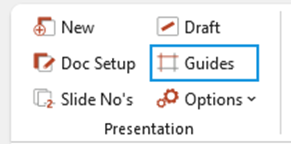
This function displays or hides native PowerPoint drawing guides. These guides (dashed lines) are non-printing and help you arrange things consistently across a set of slides. The guides are generally set to the body text placeholder positions in the templates.
Select Guides on the Create ribbon.
| Notes PowerPoint drawing guides are horizontal and vertical lines that help you visually align and position pictures, shapes, and other objects on your slides. Use drawing guides in Normal view when you build your presentation. They're not visible during a slide show and do not print. You can display or hide drawing guides, and you can add or delete guides as well. When the guides are turned on, by default, PowerPoint displays one horizontal and one vertical guide that intersect at the centre of the slide. To add additional guides, hold CTRL, click an existing guide, and then drag it to a new location. To delete a guide, click and drag it off the slide. |
Saving as a PDF
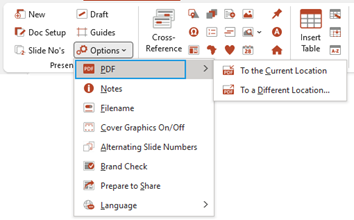
Saves your current presentation as a PDF either to the current file location or to a new location with a different name. Both options will prompt you to save the PowerPoint file, and then create a PDF with non-printing information and properties removed.
Select Options, PDF on the Create ribbon.
Guidance/Instruction Notes
If there are guidance or instructions notes on the slides you can switch between hiding and displaying them using the Notes function.
Select Options, Notes on the Create ribbon.
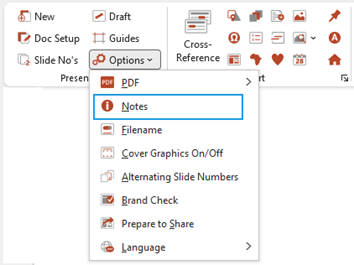
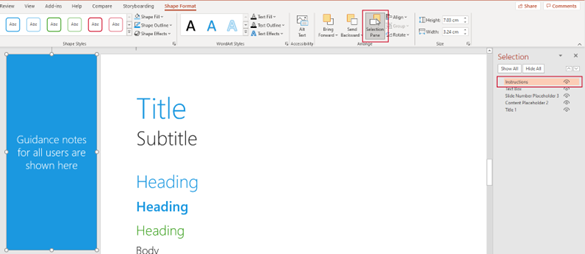
| Notes Any shapes that are named Instructions will be switched on/off using this function. Guidance notes/instructions that are part of your template will already be named correctly, but if you add notes to your current presentation, you will need to name them using native PowerPoint. |
To name the shape, select it and from the Shape Format ribbon, open the Selection Pane.
From the Selection Pane which opens on the right of the window, rename the shape to Instructions.
Displaying the Filename
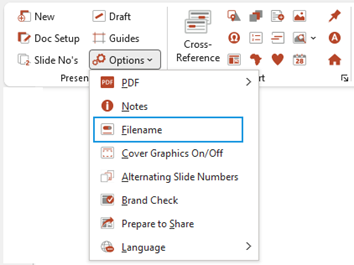
This function displays or hides the filename and location on each slide of the presentation.
Select Options, Filename on the Create ribbon.
Hiding Cover Graphics
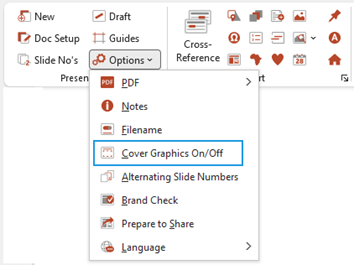
This function displays or hides cover graphics on the title slide of the presentation (the availability of this function depends on your customisation) – useful if you are planning to print on to pre-printed covers.
Select Options, Cover Graphics On/Off on the Create ribbon.
Alternating Slide Numbers
This function displays consecutive slide numbers on alternate slides of the presentation – useful for double-sided printing.
Select Options, Alternating Slide Numbers on the Create ribbon.
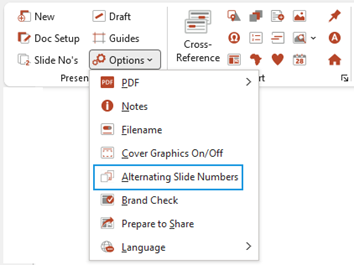
To revert to slide numbers on every slide, select Slide No’s on the Create ribbon.
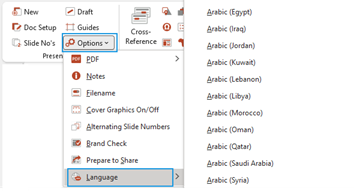
Language
Applies the selected proofing language to all shapes and objects in the PowerPoint presentation. This will only affect the current document. Your computer’s spelling language will be visible at the top of the options.
Select Options, Language on the Create ribbon.
Was this article helpful?
That’s Great!
Thank you for your feedback
Sorry! We couldn't be helpful
Thank you for your feedback
Feedback sent
We appreciate your effort and will try to fix the article