This Create function allows users to add a cross-reference which will link to other parts of the same presentation.
- Cross-references can contain hyperlinks to: items on the title slide, the Agenda/TOC; or any section title, slide title or slide number in the presentation.
- They will be displayed as hyperlinks when inserted.
- The cross-references can then be updated, hidden or removed – all at once or individually.
Select Cross-Reference on the Create ribbon or open the Text task pane from the side bar.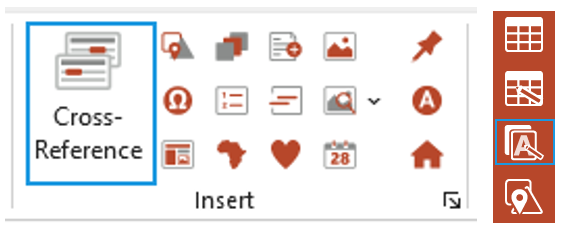
The Text task pane opens at the Cross-Reference panel.
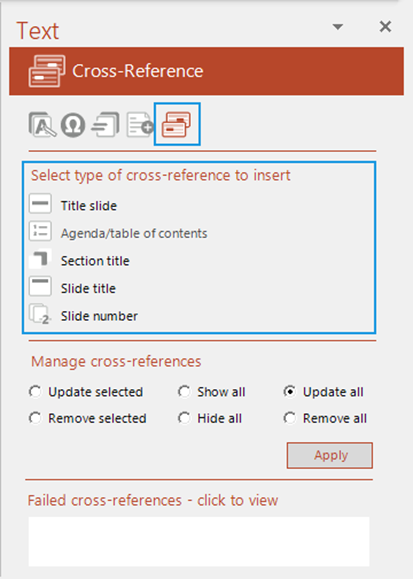
With your cursor in the position where you wish to insert it, select the type of cross-reference you wish to insert:
- Title slide will open a dialog showing the items on the title slide
- Select the item you wish to cross-reference and click OK.
- If that shape isn’t populated on the title slide, Create will not be able to add a cross-reference.
- Agenda/table of contents will insert a cross-reference to the Agenda/TOC slide and show the relevant text in the cross-reference
- Section title will open a dialog listing the sections and appendix titles in the presentation
- Select the section or appendix title you wish to cross-reference and click OK.
- Slide title will open a dialog listing the slide titles in the presentation
- Select the slide title you wish to cross-reference and click OK.
- Slide number will open a dialog listing the slide titles in the presentation
- Select the slide number you wish to cross-reference and click OK.
The cross reference will be inserted at the position of your cursor.
Managing Cross-references
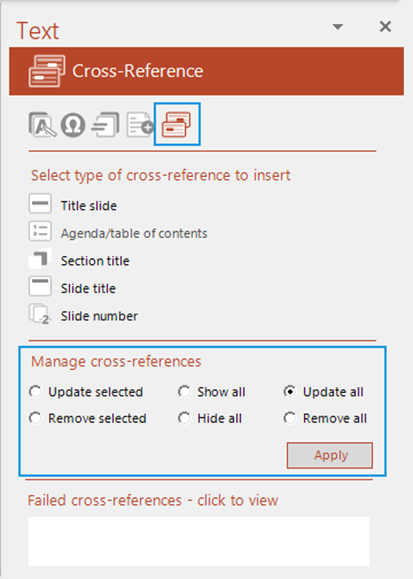
You can apply actions, such as updating or hiding, to all or selected cross-references in the lower section of the Cross-Reference task pane.
- Update selected will update a single selected cross-reference.
- Remove selected will remove the selected hyperlink/s permanently; it will revert to text and no longer update.
- Show all will show all cross-references that have been previously hidden.
- Hide all will remove all cross-references and the display text will revert to text. However, Create will retain a record of the position of the cross-reference and you can use Show all to display them again. Whilst the cross-references are hidden they will no longer update.
- Update all will update all the cross-references in the presentation.
- Remove all will remove all the hyperlinks from a presentation permanently; they will revert to text and no longer update.
- Click Apply after selecting any of the above options.
- The failed cross-references window will list any cross-references that no longer exist.
- You can click on any item in the list to go that cross-reference in your presentation.
- With the cross-reference still selected you could edit it by inserting a new one.
Was this article helpful?
That’s Great!
Thank you for your feedback
Sorry! We couldn't be helpful
Thank you for your feedback
Feedback sent
We appreciate your effort and will try to fix the article